
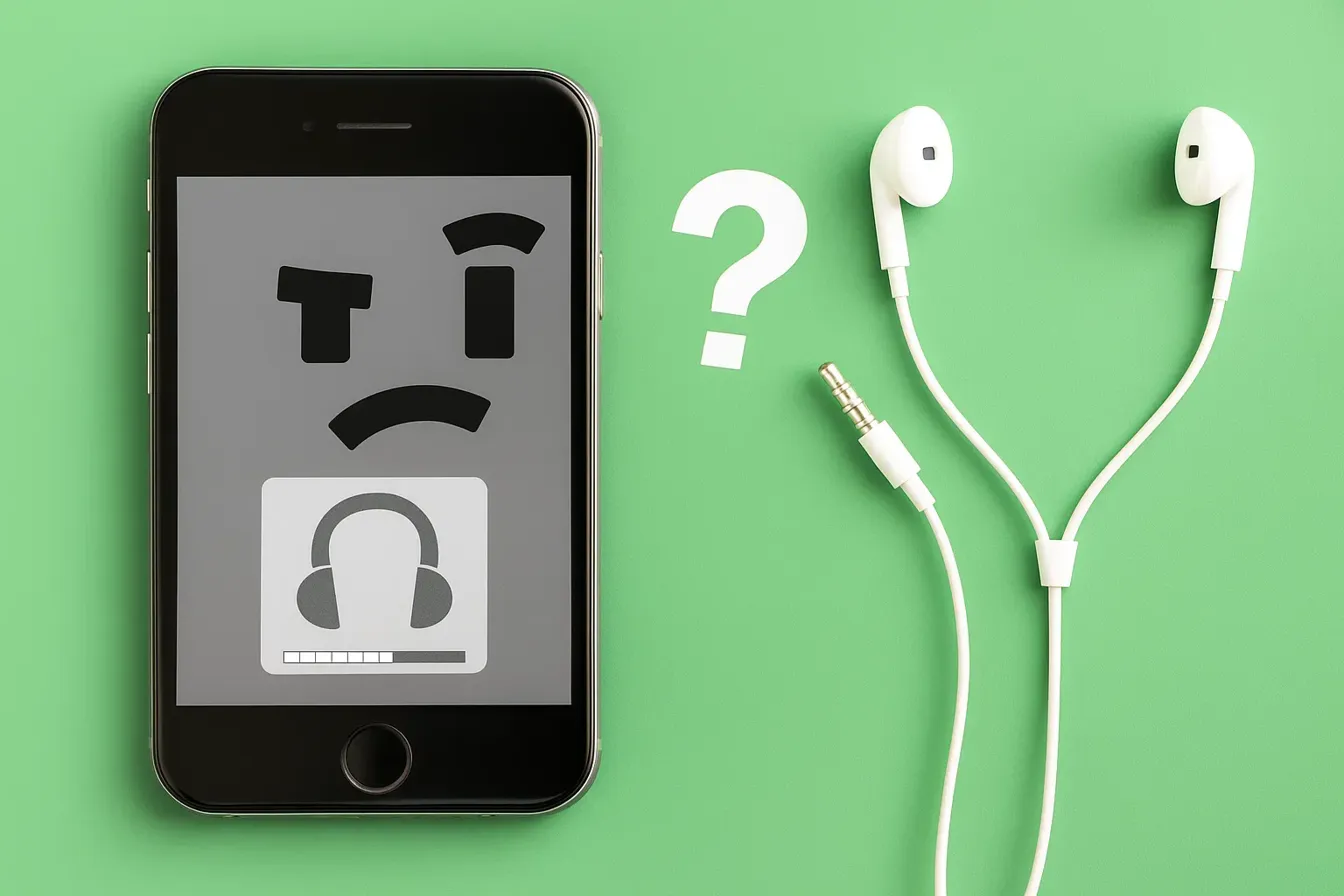
You unplug your headphones, but your iPhone still thinks they’re connected. No sound comes from the speakers, calls are hard to hear, and adjusting the volume only shows the headphone icon. This frustrating glitch is known as being “stuck in headphone mode.”
At iDoctorCT, our technicians see this issue often and know how disruptive it can be. The good news is—most of the time, it’s not a serious hardware failure. In this guide, you’ll discover the main reasons why your iPhone gets stuck in headphone mode and 9 practical fixes to restore your sound.
Why Does My iPhone Get Stuck in Headphone Mode?
Several factors can trigger this glitch, including:
- Dust or debris inside the headphone jack or Lightning port
- Moisture damage confusing the audio system
- Software bugs after updates
- Faulty headphone accessories or adapters
- Hardware damage to the port or logic board
Understanding the root cause helps you decide whether a simple DIY fix will work—or if you need professional repair.
9 Fixes to Try
1. Restart Your iPhone
The simplest first step—restart your device. Many temporary glitches clear out after a reboot.
2. Plug and Unplug Headphones
Insert your headphones (or Lightning adapter) again, then remove them. Repeat a few times to help your iPhone recognize the change.
3. Inspect and Clean the Port
Use a flashlight to check your headphone jack or Lightning port. Gently remove dust or debris with a soft brush or compressed air. Avoid metal objects that may damage the port.
4. Turn On and Off Airplane Mode
Switch Airplane Mode on for 30 seconds, then turn it off. This resets your iPhone’s network and audio connections.
5. Disconnect Bluetooth Devices
Your iPhone might think a Bluetooth headset is active. Go to Settings > Bluetooth and disconnect or turn off Bluetooth completely.
6. Update iOS
Outdated or buggy software can cause headphone detection problems. Go to Settings > General > Software Update and install the latest version.
7. Reset All Settings
If updates don’t help, go to Settings > General > Reset > Reset All Settings. This clears system settings without deleting your data.
8. Dry Out Moisture in the Port
If your iPhone was exposed to water, the port may register false signals. Leave your phone powered off in a dry place, or use silica gel packets to absorb moisture.
9. Seek Professional Help
If none of these fixes work, you may have a damaged port or logic board. Our experts atiDoctorCT can run diagnostics, repair faulty components, or replace parts safely.
Practical Recommendations
- Always use Apple-certified accessories.
- Avoid inserting sharp objects into the port when cleaning.
- If you notice liquid damage, power off immediately and get help.
- For long-term solutions, explore ourfinancing options for affordable repairs.
Conclusion
An iPhone stuck in headphone mode is annoying but often fixable with simple troubleshooting. From cleaning the port to updating iOS, these steps can quickly restore your speaker sound. If the issue continues, it’s likely a hardware fault—something our skilled technicians can handle.
Whether you want to sell your device for an upgrade or schedule a fast repair through our Contact Us page, iDoctorCT is here to help.
FAQs
Q1: Will I lose data if I reset my iPhone to fix headphone mode?
No, resetting all settings won’t erase your files. It only clears system preferences like Wi-Fi passwords.
Q2: Can moisture alone cause headphone mode to get stuck?
Yes. Even small amounts of moisture in the Lightning port can trick your iPhone into thinking headphones are plugged in.