

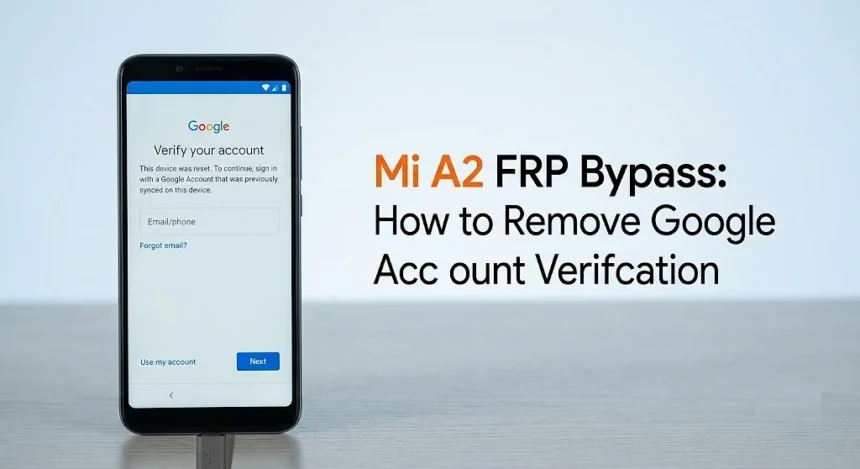
It’s late, your Mi A2 just rebooted after a factory reset, and now it’s asking for a Google account you set up years ago and haven’t thought about since. You try the obvious password. Wrong. You try the other one. Wrong. And now you’re locked out of your own phone by the exact feature that’s supposed to be protecting it.
If you’ve landed here after wading through three other guides, you already know the problem: half the FRP advice online is written by people who’ve clearly never picked up this phone, pointing you at tools that are outdated, sketchy, or flat-out dead. Xiaomi owners hit this wall constantly, and it’s the same story on plenty of other Androids too. So this is the honest version for the Mi A2 specifically, the methods that still work in 2026, and the ones to walk straight past.
What FRP actually is, and when this guide is for you
Factory Reset Protection is the lock that kicks in after a phone gets wiped. Reset the device, and before it lets anyone back in, it demands the Google account that was signed in before the wipe. The idea is simple: if your phone gets stolen and the thief wipes it, they still can’t use it. Good feature. Right up until the person staring at that screen is you.
Let’s be straight about who this is for, because it matters. This is for your own phone that you’ve been locked out of, or a handset you bought second-hand fair and square and the previous owner forgot to sign out. That’s the legitimate lockout, and it’s incredibly common with used phones. If that’s you, keep reading. If it isn’t your phone, FRP is doing precisely the job it exists to do, and no guide should help you past it.
One more bit of honesty before the methods: skip anything that tells you to root the Mi A2 just to clear a Google account, and give a wide berth to the random APK files floating around forums promising a one-tap unlock. Those are the routes that either brick your phone or quietly walk off with your data. You don’t need them, and the methods below don’t ask for them.
Method 1: iToolab UnlockGo (the one that actually just works)
If you want the version that doesn’t involve praying over a half-working APK, this is it. iToolab UnlockGo Android handles the FRP removal as a guided process, plug in, click, wait, and it does the fiddly part for you. It’s the paid option, and I’m putting it first because it’s the one most likely to get a non-technical person back into their phone without a second lockout an hour later.
Here’s the process end to end:
- Download and install UnlockGo on a Windows or Mac computer, then open it and choose Remove Google Lock (FRP).
- Connect the phone to the computer with a USB cable.
- Pick your device details when prompted, the software walks you through putting the phone into the right mode.
- Let it run. It downloads the matching data package and does the removal itself.
- When it finishes, the phone restarts clean, and you set it up with a fresh Google account of your own.

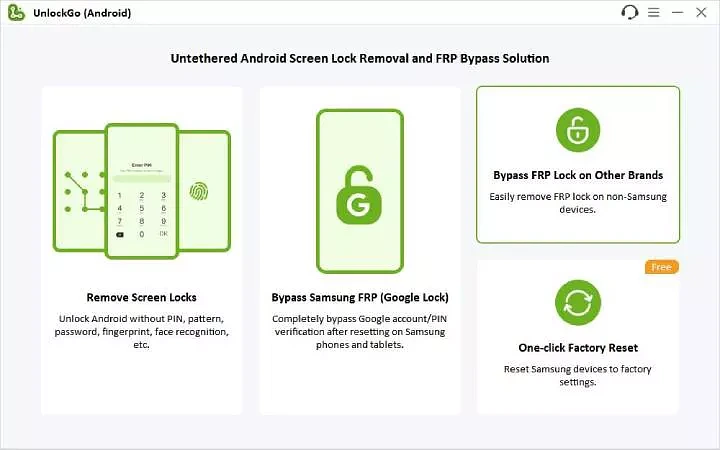
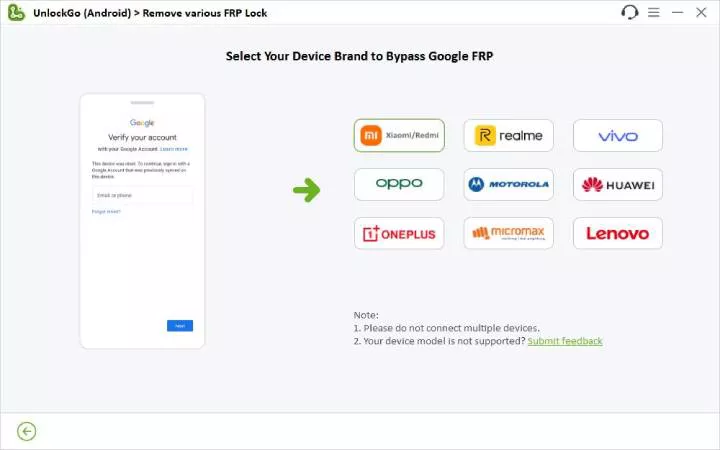
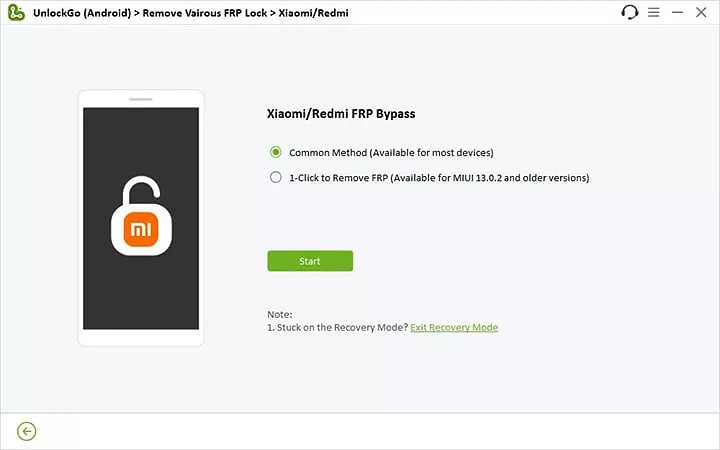
The whole thing runs about ten to fifteen minutes. The catch is that it isn’t free after the trial, which is a fair thing to weigh, if you’d rather spend time than money, the manual method below is genuinely doable.
Method 2: The manual bypass, no software, no cost
This is the free route, and on the Mi A2 it’s more reliable than it is on a lot of phones because of how the setup wizard handles the keyboard. It takes patience and a steady hand, but it costs nothing and asks you to install nothing.

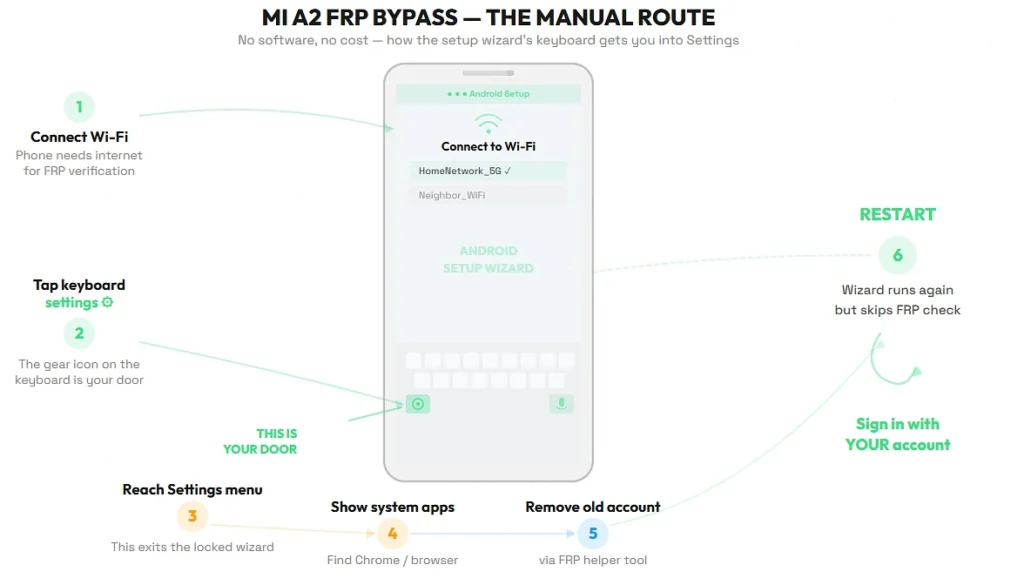
- On the wizard’s Wi-Fi screen, connect to a network so the phone is online. FRP needs a connection to verify, and you’re going to use that same screen against it.
- Go back to the very first screen and tap the keyboard settings or the microphone key to reach Android’s keyboard options.
- From the keyboard settings, work your way into the general Settings menu, this is the door that gets you out of the locked wizard and into the actual system.
- In Settings, open the apps list and enable viewing system apps so you can reach Chrome or the browser.
- Use the browser to download a trusted FRP helper tool, then from the download, open Settings again and remove the old Google account.
- Restart the phone. The wizard runs again, but this time it doesn’t ask for the old account, and you sign in with your own.
Please Note: Latest android models and versions have got this is patched and won’t work, I tried on my other Pixel 8 Pro phone it was patched already.
So Manual BYPASS methods can work for old school android phones, mostly new phones are now patched.
Fair warning: the exact taps shift slightly depending on your security patch level, so if one path is closed on your build, back up a step and try the neighbouring menu. It’s fiddlier than the software route, which is the whole trade, your time instead of your money.
Method 3: The OTG method for older security patches

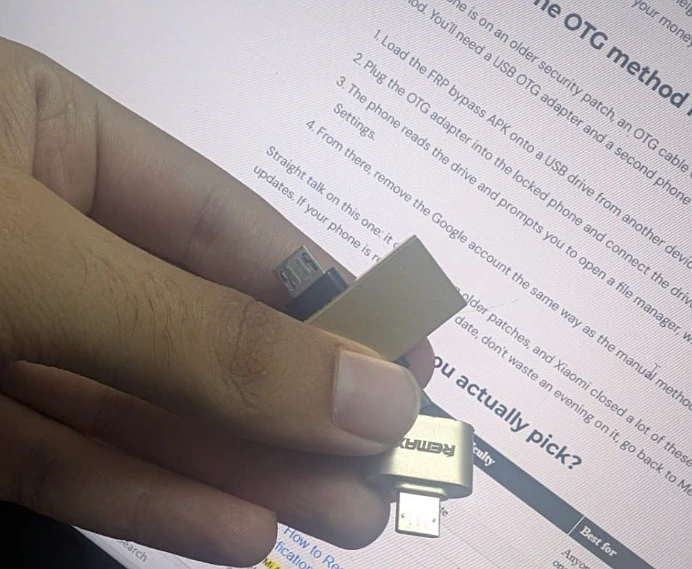
If your phone is on an older security patch, an OTG cable can get you there faster than the menu-diving method. You’ll need a USB OTG adapter and a second phone or a USB drive with an FRP tool on it.
- Load the FRP bypass APK onto a USB drive from another device.
- Plug the OTG adapter into the locked phone and connect the drive.
- The phone reads the drive and prompts you to open a file manager, which gives you a way into Settings.
- From there, remove the Google account the same way as the manual method, then reboot.
OTG file-manager triggers were largely patched around Android 7/8.
Straight talk on this one: it only works on older patches, and Xiaomi closed a lot of these holes in later updates. If your phone is reasonably up to date, don’t waste an evening on it, go back to Method 1 or 2.
Which method should you actually pick?
| Method | Cost | Difficulty | Best for |
|---|---|---|---|
| iToolab UnlockGo | Paid (free trial) | Easy | Anyone who wants it done in one go |
| Manual bypass | Free | Moderate | Patient people on a budget |
| OTG method | Free | Moderate | Phones on older security patches |
If you’re not especially technical and you just want back into your phone tonight, pay for the software and be done. If you’ve got time and enjoy a bit of a puzzle, the manual method costs nothing and teaches you where all these menus hide. The OTG route is the specialist option for older builds, worth a shot if your patch is dated, skippable if it isn’t.
Bonus Method: Bypass/Unlock Google Account Lock Without PC

Frequently asked questions
The cleanest fix is the honest one: contact the person you bought it from and ask them to remove their Google account remotely, they can do it in seconds from their own Google settings, and then the lock clears itself. If they’re not reachable, which is the usual reason people end up here, the methods above are your route back in. This is one of the most common legitimate FRP situations there is.
If you’re at the FRP screen, the phone has already been factory reset, so the personal data was cleared by that reset, not by these methods. Removing the account lock doesn’t wipe anything further, it just gets you past the sign-in wall so you can set the phone up fresh.
Removing FRP from a phone you own, or one you legitimately bought, is fine, it’s your device. Doing it to a phone that isn’t yours is a different matter entirely, and that’s the exact scenario FRP is built to stop. Stay on the right side of that line and there’s nothing to worry about.
The manual steps don’t match my screen. Did I do something wrong?
Almost certainly not, it’s the patch level. Xiaomi shifts these menus around with security updates, so a guide can only ever describe the common path. If a tap doesn’t lead where it should, back up one step and try the adjacent menu, the door is usually still there, just moved. If the manual route keeps dead-ending, that’s your sign the software method will save you the headache.
Commercial tools claim to “just work,” but their success depends entirely on the device’s exact Android version and security patch level.