


Your phone drops out of your hand; the screen turns off. You can still feel it vibrating, but either you can’t unlock it or it’s not turning on at all.
And suddenly those photos, your WhatsApp chats, contacts, and files seem to be much more important.
On the bright side, a phone with a problem doesn’t have to result in losing your photos or personal data completely. Whether it’s a problem in the display, the touch controls, a system fault, or failure in the phone’s internal storage, the method of recovery might be different depending on what exactly went wrong.
In some cases, you can recover data normally. For broken-phone scenarios, a dedicated Android data recovery software such as Dr.Fone Data Recovery (Android) can provide another path.
This article describes how to evaluate the damage, choose an appropriate recovery solution, and restore Android and WhatsApp data without compromising your other content.
Part 1. Assess the Phone Condition and Protect Remaining Data

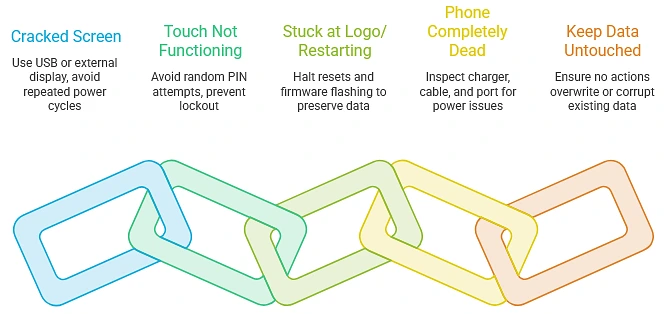
Before trying anything to recover data, identify exactly what problem has occurred to your mobile phone. Cracked screen, touch not functioning, boot loop, or dead phone are quite different problems that can lead to different situations.
Check the mobile phone condition
- Broken screen but phone operational: Connecting a USB cable or using an external display supported by the phone could be a solution for you. Do not repeatedly power on and off the phone.
- Touch not functioning: Trying random PINs or patterns again will not be helpful. In fact, repeated failed attempts might make you unable to access your phone later.
- Stuck at the logo screen or restarting: Stop doing any sort of resets or flashing firmware. These actions can overwrite your data or make the recovery more complicated.
- Phone completely dead: First, check the charger, the cable, and the charging port. In the event of no power at all, a hardware problem is probable.
Keep whatever data remains untouched
Rushing for a factory reset, system repair, or multiple recovery attempts is often the biggest mistake. Don’t reset the device or open the bootloader if the data is of great value.
In case the phone is still working properly, it is better to make use of a computer, Google Drive, or another secure place to store vital documents and data from the device.
Part 2. Standard Recovery vs. Broken-Phone Recovery
Can you still access the phone? That usually determines which recovery route makes sense.
| Recovery method | Best for | Access needed |
| Standard recovery | Deleted or lost data on a usable phone | Phone turns on and can be accessed |
| Broken-phone recovery | Broken screen, touch failure, or certain system issues | Normal phone access may be limited |
Standard recovery
If your phone still functions properly, a standard recovery is the best choice. You can search for supported photos, videos, contacts, messages, and other files, then preview and pick out the data you want to recover.
Broken-phone recovery
Broken-phone recovery is an option for supported devices when access to the phone is difficult. The available tools vary with the phone model, Android version, type of damage, and whether the phone’s internal storage is still accessible.
Part 3. Dr.Fone Recovery Paths for Supported Android Cases
Dr.Fone Data Recovery (Android) offers three main recovery paths, so you can choose based on where your data is still available.
| Dr.Fone Recovery path | Best for | Key advantage |
| Internal storage | Usable Android phones with lost or deleted data | Scan, preview, and selectively recover files |
| Google Drive | Data available in an existing backup | Recover selected backed-up data without a factory reset |
| Broken phone | Supported phones with screen or touch problems | Recover data when normal phone access is difficult |
The tool is compatible with Android 16, works with over 6,000 device models, and supports 14-plus types of files, such as photos, videos, contacts, messages, documents, or even WhatsApp information. It allows you to look at everything found and save only the pieces you want afterward. Features may not be accessible on all devices due to the device, software, data type used, and recovery mode.
Part 4. Recovering WhatsApp Data from a Supported Broken Phone
If the phone is broken but still meets Dr. Fone’s supported recovery conditions, you can use its Broken Android recovery path to look for available WhatsApp data. The exact options depend on the device and its condition.
How do you retrieve deleted WhatsApp messages on android? Let’s find out!
Step 1. Launch Dr.Fone
Open Dr.Fone on your computer and go to Toolbox > Data Recovery, then choose Android and Recover from Broken Android.
Step 2. Select Phone Condition
Choose Screen On but Unresponsive or the appropriate black/broken screen option.
Step 3. Connect and Access the Phone
Connect the device and follow the prompts to install the driver, control the phone, or enter Download Mode if required.
Step 4. Preview and Recover
Preview available WhatsApp data and other files, select what you need, and choose Recover to Computer or Restore to Device.
Part 5. Compatibility Limits and Data-Safety Tips
Regrettably, it is not always the case that a broken phone gets back to normal in the same way. Here are some useful pointers to have handy before getting things started:
- Find out precisely what kind of phone you have: Your device probably comes with somewhat different recovery features, depending on your phone, Android version, and recovery source.
- No erasing your phone or doing a reset: It is possible that erasing the phone or resetting it will make your data even harder to find or, worse, completely unrecoverable.
- Safeguard recovery in another file location: After you get some files back, instead of using the broken phone to save them, move them to a computer or secure other place.
Closing Words
Broken phone, missing WhatsApp chats, and no idea where to start?
Professional data recovery software is the smart way to do everything for you while you recover the data. Dr.Fone Data Recovery can restore data from any of the supported broken Android phones and can also help with recovering your data via Google Drive, providing you with several options to locate your lost data.
The program has support for 6,000+ Android device models and various data types besides it is an ideal choice for you when common methods of recovering WhatsApp data fail to work.


