If you have ever deleted a Snapchat chat and then realised, a day later, that you actually needed it back, you will already know how frustrating the standard recovery options are. iCloud backup would have solved the problem, except that the last backup had been made before the chat had even happened, which meant that the data was simply not there. So you try a tool that claims it can scan the phone directly without requiring a backup, and what it finds is three messages. Three. That is not handling it all, but it is more than zero, which is what you had before.
Gmail tends to be slightly better, though not by much. Two emails that had been in Trash and had already auto-deleted were pulled from local cache before Google had synced the deletion across all devices. Again, this is not a miracle. It is simply cached data that had not yet been overwritten by the system.
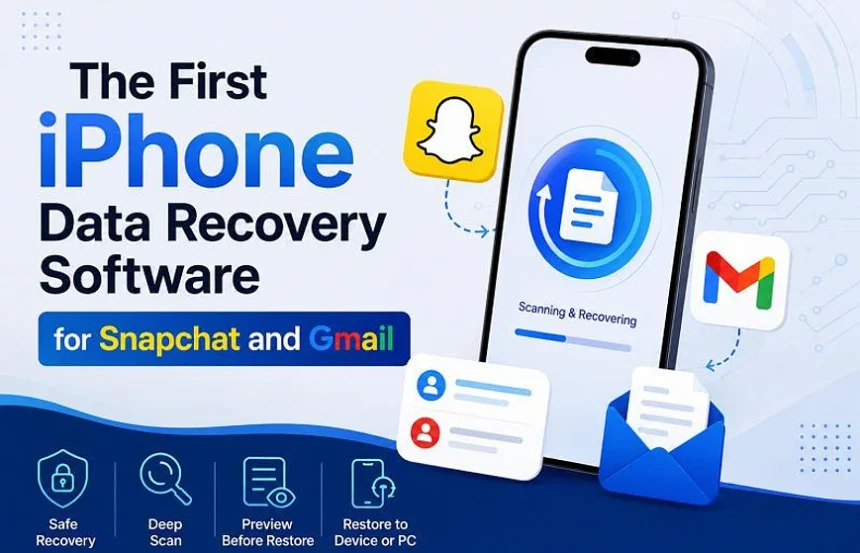
This article is about what Dr.Fone – Data Recovery (iOS) actually delivers, including what it will find, what it will not find, and whether the free scan is worth your time before you decide to pay.
Why Snapchat and Gmail Recovery Has Always Been Difficult
The two apps make recovery difficult for opposite reasons, and this has been the case since they were first designed. Snapchat deletes almost everything locally by design, which means that very little is ever left behind. Gmail keeps a server copy, but once Trash has emptied or the account has synced, the local cache will have vanished too.
| App | Where Data Lives | Why Recovery Fails | Best Shot |
| Snapchat | Temporary local storage, mostly. | Snaps and chats are built to disappear. Only fragments stay behind. | Scan immediately after deletion. |
| Gmail | Google’s servers + local iPhone cache. | Deleted emails sync fast. Cache gets wiped once the account updates. | Before Trash auto-deletes or syncs. |
The table above shows the reality that no software marketing page will put on its homepage. Recovery is partial at best. Anyone who promises that your full chat history can be restored is lying.
Why the Standard Recovery Methods Have Usually Failed for These Two Apps
The obvious routes fail because they are not scanning the phone itself. iCloud backup restores the entire device, which means that everything which has been added since the backup was made will be wiped. Snapchat’s own My Data export only gives you what they still have on their servers, which does not include deleted chats. Gmail Trash works for thirty days, after which it is gone permanently.
| Method | What It Gets You | Why It Fails for Snapchat/Gmail |
| iCloud or Finder Backup | Full device restore. | Wipes current data. Does not target deleted Snapchat or Gmail separately. |
| Snapchat My Data / Google Takeout | Server-side archives. | Only exports what the platform still holds. Deleted content is gone. |
| Gmail Trash | Recently deleted emails. | Thirty-day window. Useless for Snapchat. Auto-deletes permanently. |
Dr.Fone is doing something different. It reads the internal storage directly, looking for fragments that the apps have left behind before iOS has had the chance to overwrite them. Whether those fragments still exist will depend on how much you have used the phone since the deletion occurred.
What Dr.Fone Actually Does Differently
Most recovery tools have been designed to scan for photos, contacts, and texts. Dr.Fone added Snapchat and Gmail scanning, which sounds minor until you realise that no one else had been doing it at all. The scan is read-only, which means that it does not touch existing data. It also runs before you pay, which matters because buying recovery software blindly has usually been a waste of money.
What the tool offers:
- No device wipe. It scans without restoring a backup. Current data stays untouched.
- No backup required. If you have never backed up, or if your backup is too old, this will be the only option that is left.
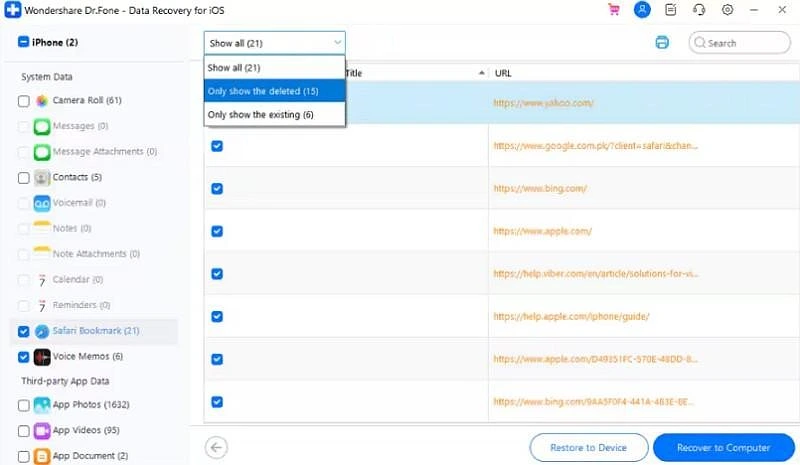
- Deleted-only filter. Existing data is hidden and only what was deleted is shown. This saves scrolling through thousands of current messages.
- Free scan first. You see recoverable data before deciding to purchase. This is honest, because the results are usually modest and you will know what you are paying for.
- Readable previews. Recovered chats and emails are shown in plain text, not raw file names that you would have to decode.
The tool can also pull from iCloud or local backups if you have them, through eight different recovery modes. Those were not tested here because the problem had been specifically the missing backup. But the option is there.
One note: Dr.Fone says that it was the first to add Snapchat and Gmail recovery. That claim cannot be verified here and is not being repeated as fact. What can be verified is that it found data which the other methods had not.
Which iPhones and iOS Versions Actually Work
Before you download anything, you should check your version. Dr.Fone supports iPhone 16 and earlier, but the iOS version matters more than the phone model does.
| Requirement | Supported | Not Supported |
| iPhone Model | iPhone 16 and earlier | iPhone 17 models |
| iOS (Earlier Range) | iOS 17.0 through 18.7.1 | iOS 18.7.2 and later 18.7.x releases |
| iOS (Later Range) | iOS 26.0 through 26.0.1 | Anything above iOS 26.0.1 |
If you are on an unsupported version, you should not buy yet. The compatibility list updates, but slowly. Check this table before running the scan and it might save you from having to request a refund.
How the Recovery Process Actually Works
The process is simple, but the results will depend heavily on timing. Here is exactly what happens.
Step 1. Open the Data Recovery Module
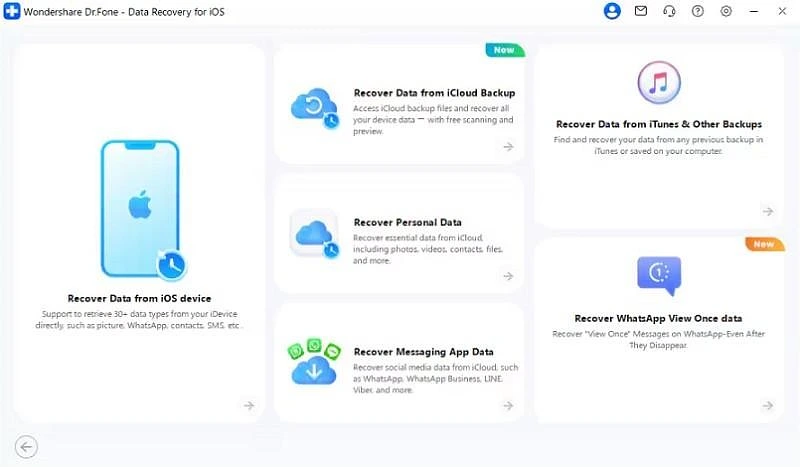
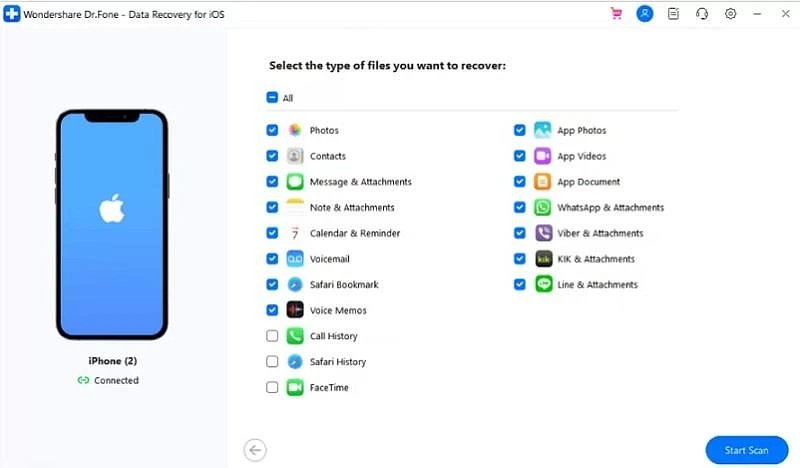
Launch Dr.Fone, select Recover Data from iOS Device, and choose Snapchat and Gmail from the list of thirty-five data types. Then click Start Scan.
Step 2. Connect the iPhone
The software will prompt you to plug in the phone with a cable. Select Snapchat and Gmail from the options, then start the scan. A 128GB iPhone 14 which had roughly half the storage used took about forty minutes. A fuller or larger phone will take longer.
Step 3. Preview and Recover
After the scan has completed, preview the recoverable data. In the test that was described above, three Snapchat chats and two Gmail emails appeared. Select what you need and click Restore to Device or Restore to Computer. Leave the rest alone.
That is the honest result. Three chats. Two emails. Not the full history. Not nothing either.
Four Hard Lessons That Were Learned From Actually Running the Scan
The marketing makes recovery sound straightforward. The actual experience is more limited. Here is what you should know before you start.
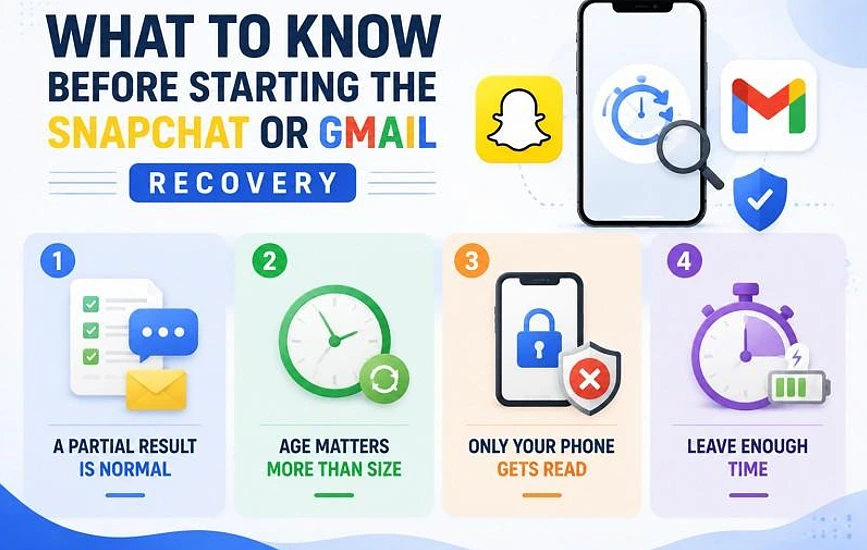
- Partial results are normal.
Three Snapchat chats from a month of messages is not the tool failing. That is how Snapchat works. Expecting your whole history to come back is what leads to disappointment and refund requests.
- Age matters more than file size.
The Gmail emails that were recovered had been deleted two days before the scan. Older ones were gone. Recently deleted files are much easier to find than old ones, regardless of how large they had been.
- The scan only reads your phone.
Nothing comes from Snapchat’s servers or your Google account. Whatever they have deleted on their end will stay gone. The tool only finds what is still sitting in local storage, undisturbed.
- A full phone takes time and power.
The 128GB iPhone which had about sixty gigabytes used took forty minutes. A 256GB phone that is near full capacity will take significantly longer, and it needs to stay plugged in throughout. Starting at fifteen percent battery is asking for trouble.
Whether It Is Worth the Money
Dr.Fone found data that had been thought to be permanently gone. That is real. But the volume was small, and the marketing language on the site oversells what is actually recoverable.
Here is the practical advice: Run the free scan first. Do not pay until you have seen something worth recovering. If the scan shows zero results, close the software and move on. If it shows three chats, two emails, or whatever fragments remain, then decide if that is worth the price to you.
Also, scan as soon as you can. The test that was described above was run within forty-eight hours of deletion. If you wait longer, iOS will likely have overwritten the cached data. At that point, no software will be able to help.
And one last thing: anything you get back is a bonus, not a guarantee. The tool reads leftovers. It does not perform miracles.