

There’s nothing more frustrating than a Mac that refuses to start up, especially when you have important files stored on it. Whether it’s due to a system crash, hardware failure, or other issues, the inability to access your vital data can cause panic. If you are troubled by this, look no further than iBoysoft Data Recovery for Mac, which can help you recover your data in macOS Recovery mode when macOS won’t start.
iBoysoft Data Recovery for Mac
iBoysoft Data Recovery for Mac is a robust and reliable Mac data recovery tool that specializes in retrieving lost or deleted files from various data loss scenarios, including system crashes, drive corruption, mistaken formatting, virus infection, accidental deletion, and so forth.
Equipped with advanced scanning algorithms, iBoysoft Data Recovery for Mac can effectively locate and recover your valuable Office documents, pictures, videos, audio files, and emails from any disk-based storage media, including your Mac’s startup disk, HDDs, SSDs, SD cards, USB flash drives, CF cards, memory cards, and more on various Mac models like MacBook Air, MacBook Pro, Mac mini, Mac Pro, iMac, and iMac Pro with T2 chips and Apple silicon M1 & M2 chips.
How Can You Retrieve Lost Data from a Mac that Won’t Boot?
When pressing the power button only to find that your Mac can’t boot up properly, don’t fret! The feature-rich iBoysoft Data Recovery for Mac comes to rescue your files from a wide range of Mac not booting up cases, such as Mac black/white/pink screen, Mac stuck on the login screen/loading screen/apple logo, Mac flash folder with a question mark, Mac starting up to a circle with a line through it, etc.
- Check Your Mac Model and Boot Your Mac into macOS Recovery Mode
To maximize the success rate for data recovery, please figure out the Mac model you are using first, as different Mac models require different approaches to enter macOS Recovery mode.
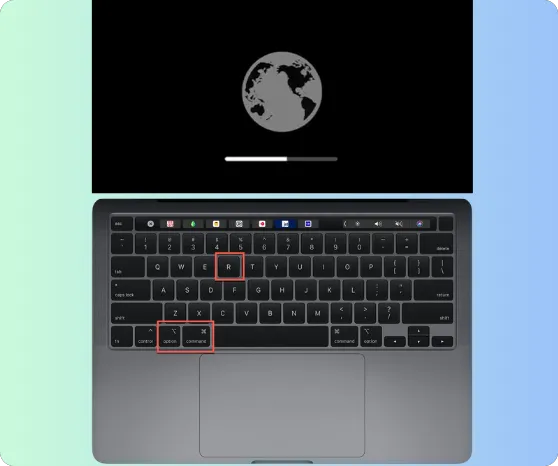
The step-by-step guide on starting an Intel-based Mac into macOS Recovery mode:
- Step 1: Shut down your unbootable Mac with an Intel chip completely.
- Step 2: Switch it on, then simultaneously hit the Command, Option, and R keyboard keys.
- Step 3: Keep this combination shortcut in place until a spinning globe appears on your screen.
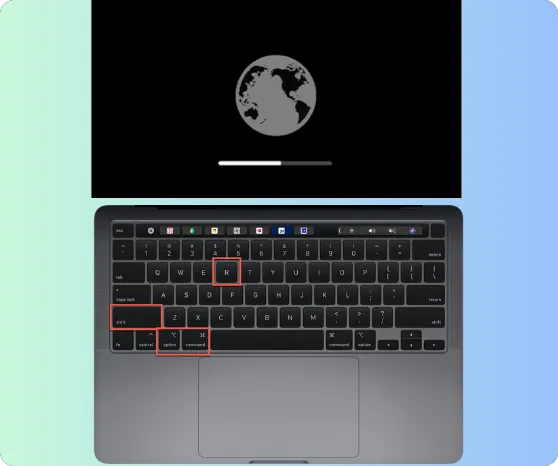
The step-by-step guide on starting a T2-secured Mac into macOS Recovery mode:
- Step 1. Shut down the Mac entirely.
- Step 2. Turn it on while pressing the Command, Option, Shift, and R key shortcuts.
- Step 3. Maintain your grip until a spinning globe appears on your screen.
The step-by-step guide on starting an Apple Silicon M1/M2 Mac into macOS Recovery mode:
- Step 1. Make sure that you have already turned off your Apple Silicon M1/M2 Mac completely.
- Step 2. Hold down the power button (Touch ID) for a few seconds until the Loading startup options appear.
- Step 3. Select Options, and then click Continue to launch macOS Recovery mode.

- Launch iBoysoft Data Recovery for Mac from Its Server under macOS Recovery Mode
When you succeed in entering macOS Recovery mode, you need to run iBoysoft Data Recovery for Mac from its server. No need to create a bootable drive and install any software for this procedure.
Step 1. Have your Mac connected to a stable Wi-Fi or Ethernet network.
Step 2. Navigate to the Utilities menu located at the top menu bar and then double-click on Terminal from the drop-down list to make the Terminal application launch.

Step 3. Input the “sh <(curl http://boot.iboysoft.com/boot.sh)” command into the Terminal window and hit Return, which will help to fetch iBoysoft Data Recovery for Mac from its server.
If you have an unstable or unavailable Internet connection, preventing this application from launching, you can still run iBoysoft Data Recovery for Mac to perform file retrieval from your non-starting Mac without the Internet. Although more challenging, it’s worth a go. Given this condition, go to its official website for further assistance.
- Get Files Back from Your Unbootable Mac
iBoysoft Mac data recovery software will start up after a short delay. And then, you can recover your lost data and export it.
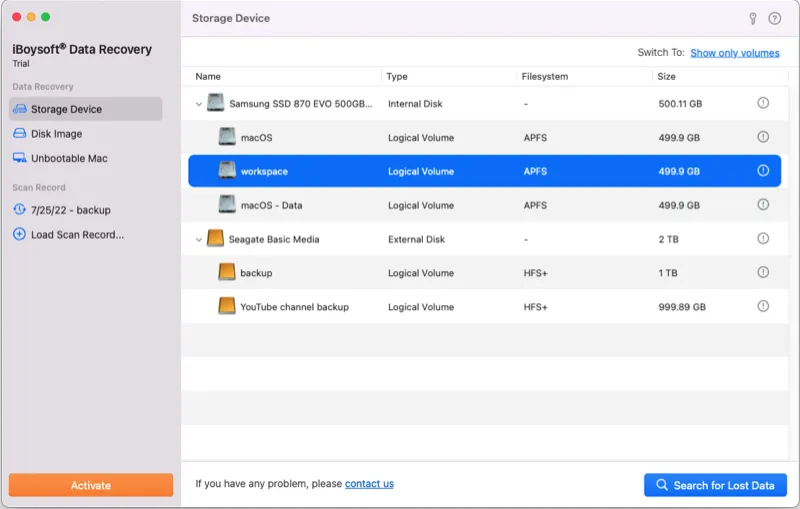
- Step 1. Select your Mac hard disk from the software interface and click the “Search for Lost Data” button to initiate the scanning procedure, which will start in no time.
- Step 2. Preview the found results to see if they are the target files you expect to recover when the software fully scans your drive and presents you with a list of recoverable files.
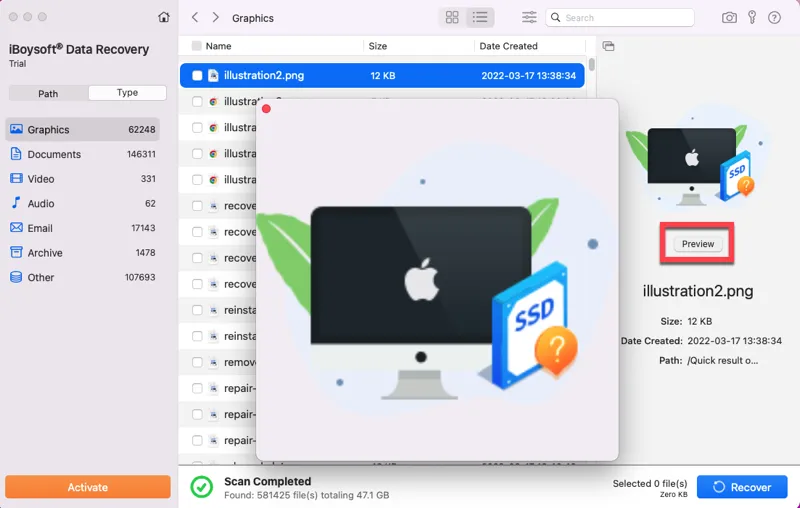
- Step 3 Tick the checkbox next to the ones you want and click the “Recover” button. Please remember to hook up an external storage device to your Mac and select it as the location for your recovered files.
Conclusion
iBoysoft Data Recovery for Mac is an excellent tool for recovering lost data from an unbootable Mac. With its user-friendly interface and powerful scanning capabilities, it offers a comprehensive solution for data recovery in challenging situations. By following the outlined steps, you can recover your lost files from your Mac that won’t boot and regain access to them.
It’s worth mentioning that iBoysoft Data Recovery for Mac indeed provides an efficient and reliable option to recover your valuable files, but you should remember to be proactive in data protection and create backups to avoid future data loss incidents.