MobileMall BlogMobileMall BlogMobileMall Blog
  • #Explore
  • Business
  • Technology
    • Gaming
    • Headphones
    • Laptops
    • Mobile Accessories
    • Home Networking
    • PCs
    • Printers
    • Smart Watches
    • Speakers
    • Streaming Devices
    • Tablets
    • Wearables
    • Smart Office
  • Security
  • Buying Guides
  • Contribute
Reading: Best 3 ways to convert DOC to PDF
Share
Font ResizerAa
MobileMall BlogMobileMall Blog
Font ResizerAa
  • #Explore
  • Business
  • Technology
  • Security
  • Buying Guides
  • Contribute
  • #Explore
  • Business
  • Technology
    • Gaming
    • Headphones
    • Laptops
    • Mobile Accessories
    • Home Networking
    • PCs
    • Printers
    • Smart Watches
    • Speakers
    • Streaming Devices
    • Tablets
    • Wearables
    • Smart Office
  • Security
  • Buying Guides
  • Contribute
2025 © Mobilemall. All Rights Reserved.
Home » Blog » Best 3 ways to convert DOC to PDF
Tech Lifestyle

Best 3 ways to convert DOC to PDF

Jayshree Rajani Malhotra (Tech Lifestyle)
Last updated: September 22, 2023 1:41 pm
Jayshree Rajani Malhotra (Tech Lifestyle)
Share
doc to pdf
SHARE

Contents

  1. Convert a Document to PDF Using Word
  2. PDFElement
  3. Converting Doc to PDF with PDF Element
    1. PDF Converter Pro
    2. Converting Doc to PDF with PDF Converter Pro

The best choice is the word format that is to make changes and editing. It keeps the works going on while the preferred option is the PDF to view or share documents. Converting a word format allows making edits and from a word document creating a pdf ensures security of the document.

Read : Online Guide: How to Convert Excel Files to PDF

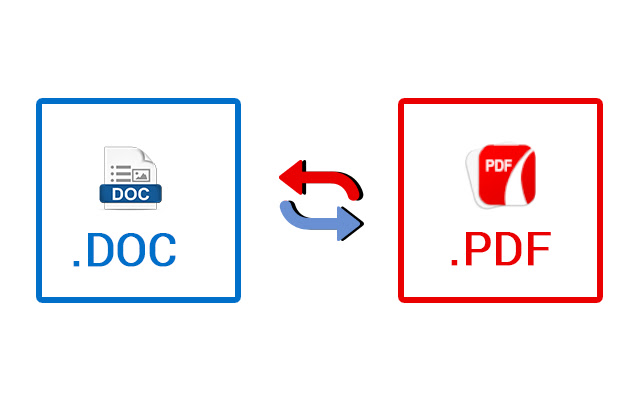
PDFs are convenient to distribute document and they are seen by all the parties in the same way. Creating documents typically using another app is helpful and then converting the same into PDF is possible. You can see here how to convert DOC to PDF.

Convert a Document to PDF Using Word

2pdf.com is one of the best ways to convert DOC to PDF. The steps are:

  • Go to 2pdf.com as the first step.
  • Drag and drop your DOCX file or Doc in the Word to PDF converter.
  • The PDF conversion takes place immediately. You can select PDF or any other file format.
  • Feel free to edit, compress or modify the file. 
  • Select the page size, orientation, and other necessary options for conversion.
  • Click the button for download and wait for the pdf file to get downloaded.
  • Now export or download it to Google Drive or Dropbox.

The saving process is automated and carried out by Microsoft Office. Dragging and dropping manually enables deleting uploaded files after processing. Share the email or file with another party or create on the result page a downloadable URL. In this way your PDF is safe and does not give access to anyone to lay hands to your document.

Converting word Doc to PDF is a tool allowing converting with ease into PDFs the word documents. The download version will come as trial version and later to use it one has to pay. Free word to PDF converter is good, but is underwhelming. It is good enough and works well. Creating or editing a document in Google Docs or word requires you to pick the option of PDF and to save or download. People needing a standalone Word to PDF converter will find it perfect, but it will not come for free for a longer time.

PDFElement

It is a DOC to PDF tool for editing and conversion.  It is a breeze work to export easily other file formats through Google Drive and Dropbox. PDF Element is a PDF top-rated editing and conversion tool supporting Microsoft office formats using a range of file types. The toolbar in PDFElement includes batch converting options from Word documents and combines into a single PDF. The Word document is in PDF format creating an accurate representation. 

The PDF Element is a conversion tool available for yearly subscription. There are varying pricing options and the features vary as per the price. The Pro version includes batch processing. It is worth considering as the editing tools PDF are the most intuitive to use.

PDF Element gives complete control over the PDF files. It allows creating PDFs of high-quality, retaining the formatting. Using its PDF editing tools one can easily edit PDF text, images or other elements. Converting the file simplifies your work. It works seamlessly.

Converting Doc to PDF with PDF Element

  • Download the software PDF Element on your device. 
  • Import the word file and click on Create PDF. Select the file to convert and click open.
  • Automatically the doc will get converted and be available ready to edit for you.
  • If you want do changes and save the work.  For this, go to File tab and choose the option Save As and name the file and choose PDF in the formats section.
  • Click on save button and convert a Word doc to PDF with PDF Element.

PDF Converter Pro

PDF Converter Pro is a DOCX to PDF professional level converter offline that permits converting PDFs with simple clicks into multiple output formats. This Doc to PDF converter is compatible with PowerPoint, Word, Excel, HTML, and image formats. It enables converting PDF documents as password-protected. The scanned documents can convert doc to Pdf into editable texts, resize pages and change, as well using the OCR feature.

Converting Doc to PDF with PDF Converter Pro

PDF Converter Pro is a PDF professional easy-to-use converter. You may download on your device or convert offline the PDF files. You may download from its official website and install as per the instructions.

  • Installing the PDF Converter Pro, you can click on the software main page, Create PDF and click on Add Files. You can select from the redirected Open Page and select the Word file to convert. Click on Open button and it automatically adds to the software.
  • Drag and drop notions are added alternatively to the option add files.
  • Once the file opens in the software, you can click on the button Create and the Word doc converts into PDF.

5 Top Video Converters that You Can’t Miss
Social Media Was Supposed to Fix Loneliness – The Data Says It Made It Worse
5 Reasons You Probably Need A VPN For Your Phone
5 Appliances That Got Smarter Like Our Smartphones
Things to check while buying a phone in Pakistan
TAGGED:3 ways to convert DOC to PDFconvert DOC to PDFHow convert DOC to PDFways to convert DOC to PDF

Sign Up For Daily Newsletter

Be keep up! Get the latest breaking news delivered straight to your inbox.
[mc4wp_form]
By signing up, you agree to our Terms of Use and acknowledge the data practices in our Privacy Policy. You may unsubscribe at any time.
Share This Article
Facebook Copy Link Print
Share
ByJayshree Rajani Malhotra (Tech Lifestyle)
Follow:
Jayshree Rajani Malhotra, a content writer with a passion for technology and lifestyle. Writing is my passion and I bring my creativity and knowledge to my work, delivering engaging and informative content to my readers. I provide valuable and insightful perspectives on the world of tech and lifestyle through my writing.
Previous Article MICROSOFT AZ-104 Read Our Guide to Complete MICROSOFT AZ-104
Next Article Buds2 Samsung Galaxy Buds2 Review

Latest News

Galaxy S27 Ultra camera
Galaxy S27 Ultra probably isn’t getting that horizontal camera bar
News Samsung
Samsung Health AI consent
Samsung backtracks on Samsung Health AI data scare, your data isn’t going anywhere
News
Samsung Galaxy Z Flip8
Galaxy Z Flip8 tips the scales at 180g, and the 150g dream is officially dead
Phone Leak Samsung
Pixel 11 Pro Fold Pine color leak
Pixel 11 Pro Fold’s Pine color leaks a month before launch
Google Phone Leak
Meta DSA investigation News
EU says Instagram and Facebook are built to be addictive; Meta faces a fine up to 6% of global revenue
Tech News
Samsung Galaxy XR
Galaxy XR reaches the UK, eight months after the US
News Samsung
OPPO Find X9 Ultra Got Sensor Bigger Than Samsung's Main Camera Inside a Portrait Lens
OPPO Find X9 Ultra Got Sensor Bigger Than Samsung’s Main Camera Inside a Portrait Lens
Camera & Photo Phone Review
Fisheye city street at dusk with a giant smartphone showing a map pin connected to a rooftop cell tower
Why Mobile Proxies Matter for Geolocation-Based Mobile App Testing
Apps Development Mobile

You Might also Like

Bullet outlines vs folder systems
Productivity

Bullet Outlines vs Folder Systems: Which Helps You Think Better?

Mohammad Ahsan
Mohammad Ahsan
5 Min Read
Digital habits for healthier lifestyle
Tech Lifestyle

Digital Habits That Support a Healthier Lifestyle

Jayshree Rajani Malhotra (Tech Lifestyle)
16 Min Read
agent deposit networks
Tech Lifestyle

How Peer-to-Peer Agent Deposit Systems Actually Work Behind the Screen

Usman
Usman
13 Min Read

About us

Mobilemall.co blog is an informative and engaging platform that offers readers the latest news and insights on mobile phones and accessories. The blog covers a wide range of topics, including product reviews, industry trends, and tips on how to get the most out of your mobile device.

Contact Us:
[email protected]

Categories Link

  • Business
  • Mobile
  • Technology
  • Gaming
  • Phone Review
  • Android

Must Read

How PropTech Is Reshaping the Hunt for Private Beachfront Land
From Drones to Blockchain: How PropTech Is Reshaping the Hunt for Private Beachfront Land
Blockchain
5 Mobile Proxy Providers Worth Knowing for Web Scraping
5 Mobile Proxy Providers Worth Knowing for Web Scraping, and Why These Specific Ones Made the List
Services & Software

Quick Links

  • Privacy Policy
  • Tech Write For Us
  • Contact Us
  • Facebook
  • Instagram
  • YouTube
  • LinkedIn
2026 © Mobilemall. All Rights Reserved.
Go to mobile version
Welcome Back!

Sign in to your account

Username or Email Address
Password

Lost your password?

Not a member? Sign Up