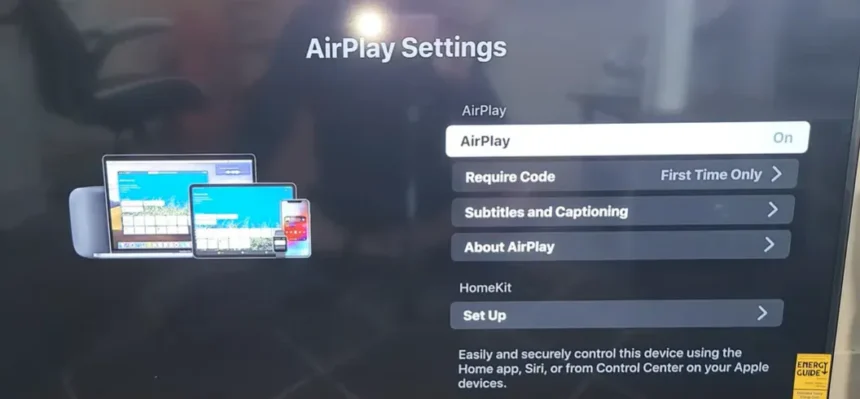
You’ll mirror your iPhone to TV through AirPlay by opening Control Center, tapping Screen Mirroring, and selecting your TV from the device list—both must share the same Wi-Fi network.
For wired connection, you’ll need a Lightning or USB-C to HDMI adapter connected to your TV’s HDMI port. Smart TVs and streaming devices like Roku or Chromecast also support mirroring after initial setup. Each method has specific requirements and performance characteristics worth exploring.
Using AirPlay to Mirror Your iPhone Wirelessly
Option 1
Same Wifi is a must on both devices!
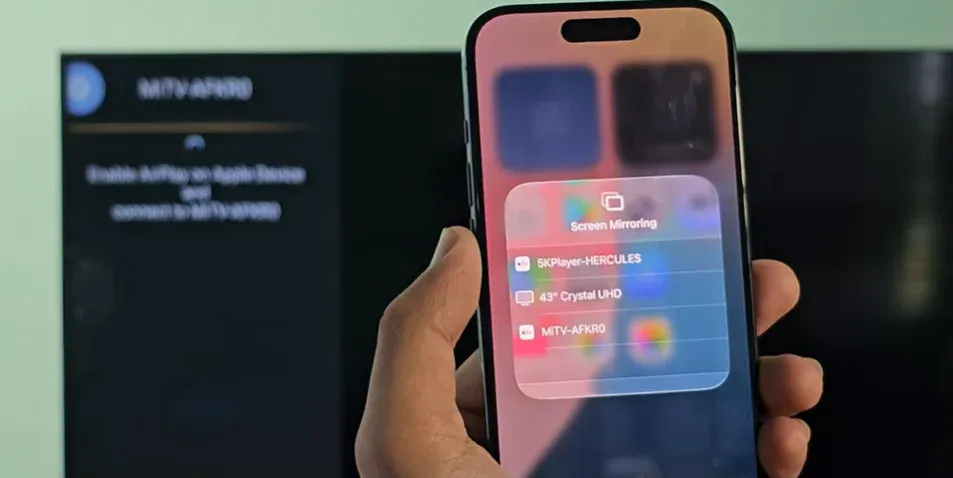
Steps to use AirPlay screen mirroring:
- Make sure your iPhone and your Apple TV or AirPlay-enabled smart TV are connected to the same Wi-Fi network.
- On your iPhone, swipe down from the upper-right corner to open the Control Center.
- Tap Screen Mirroring.
- Select your TV from the list of available devices.
- Enter the on-screen passcode if prompted to complete the connection.
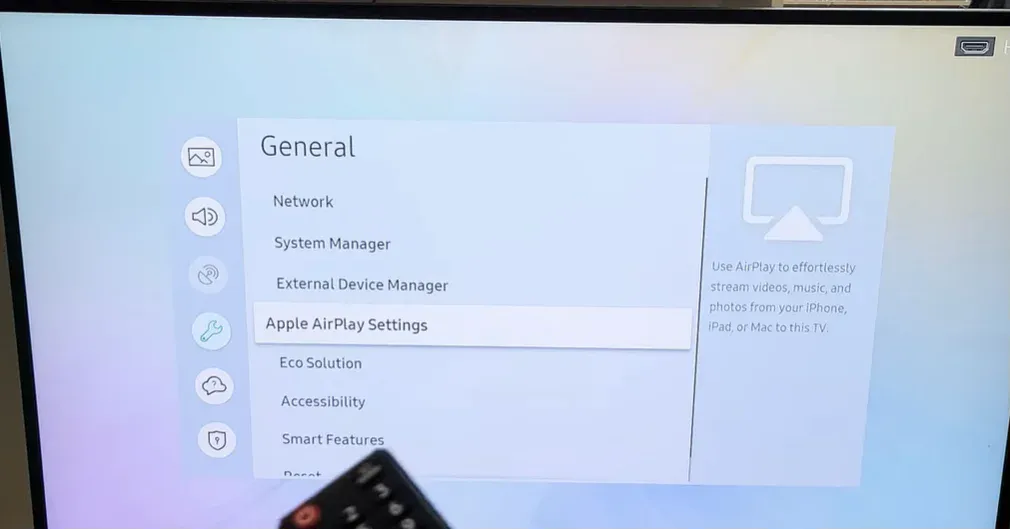
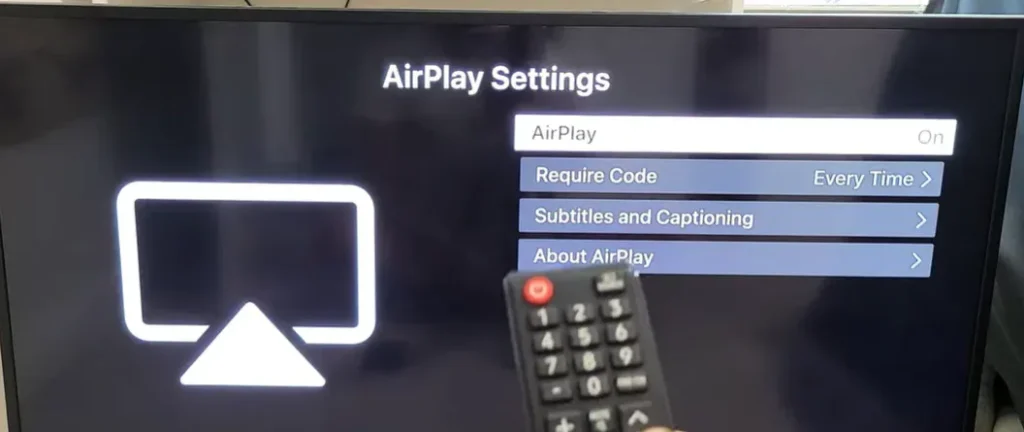
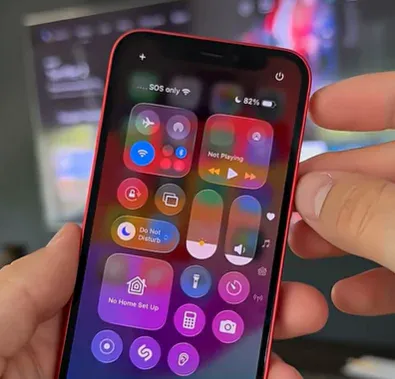
Click the icon down the battery
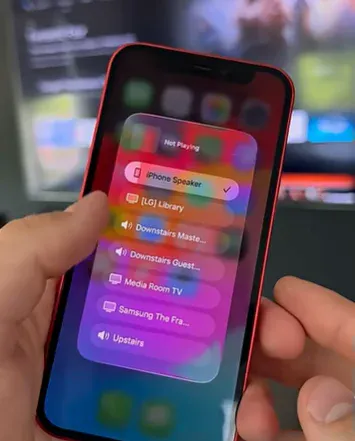
AirPlay streams your screen using encrypted connections, keeping your content secure while it’s displayed on your TV. On newer devices, delay is usually minimal, around 150–200 milliseconds.
For Roku TV
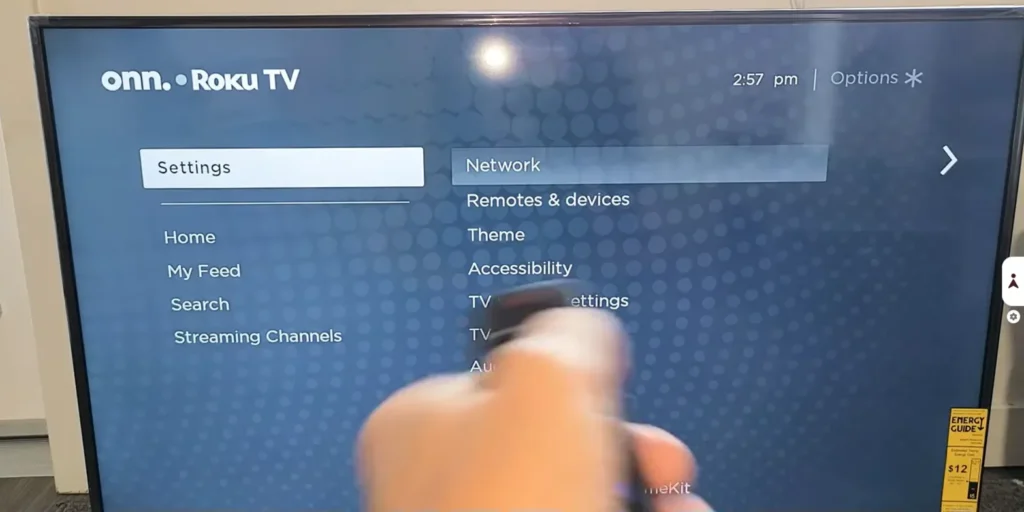
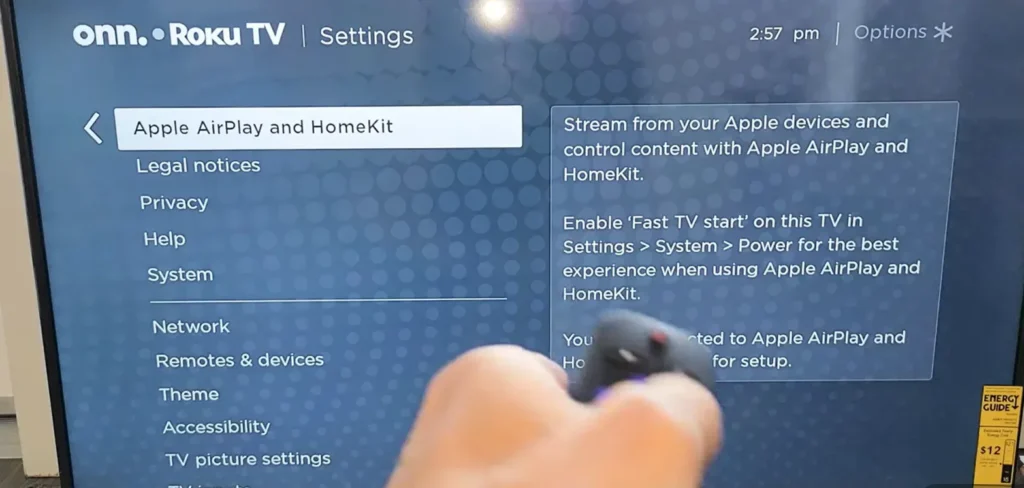
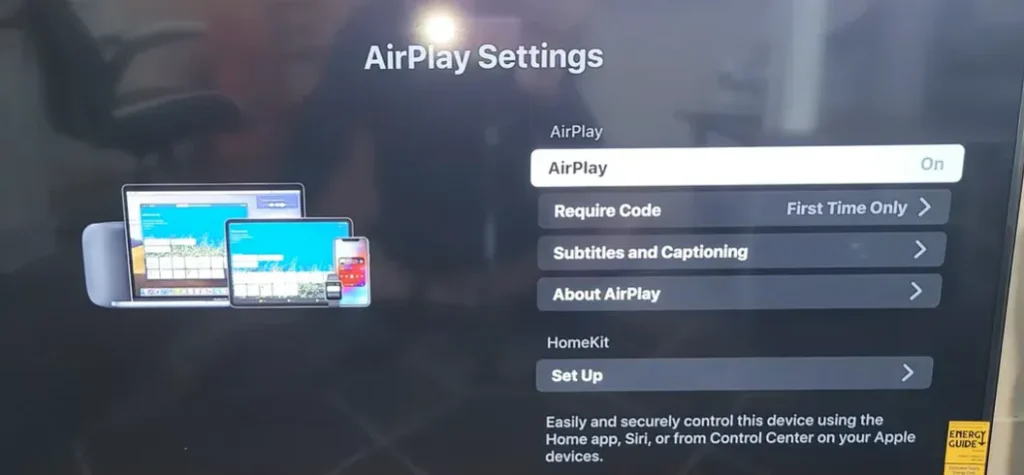
If you notice lag, try restarting both devices, updating their software, or moving them closer to your Wi-Fi router. For activities that require instant response, such as gaming or video editing, a wired connection may still be the better option.
Option 2
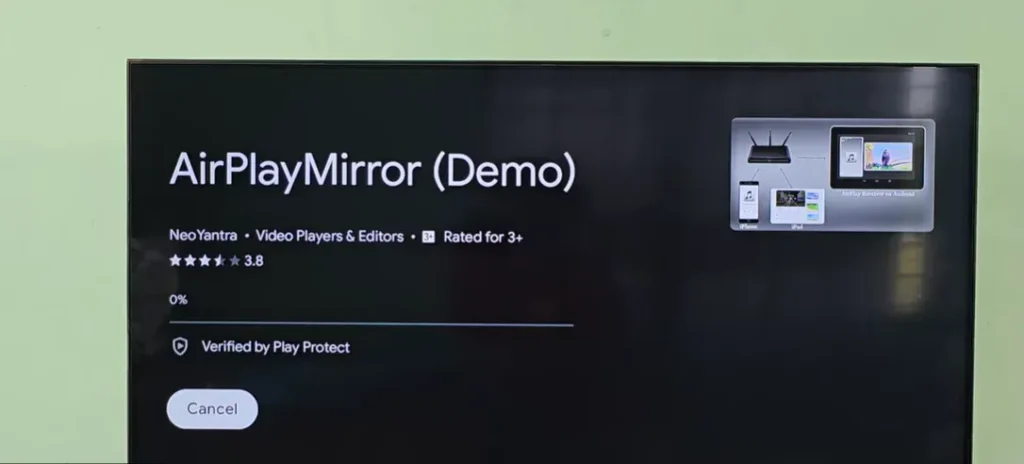
Install AirPlayMirror via Store
Good for cases when a direct connection is not working, the App in TV helps you to easily connect with your iPhone.
Connecting Your iPhone With an HDMI Cable and Adapter
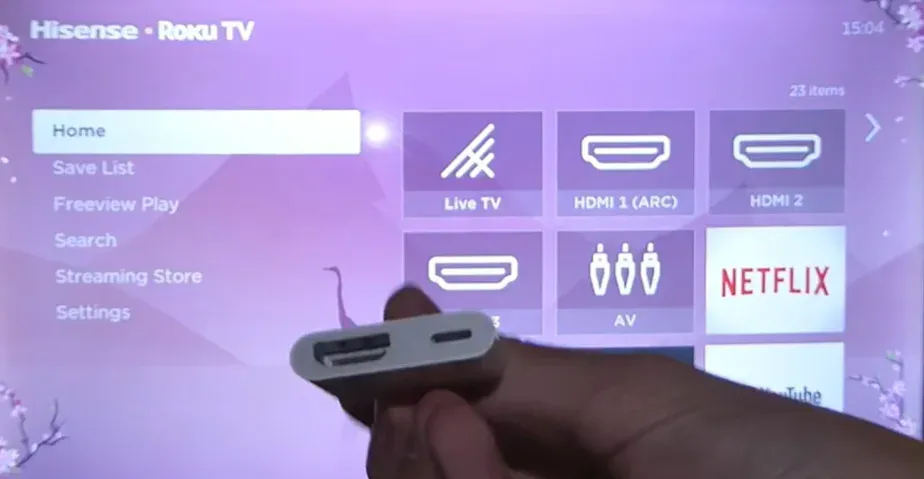
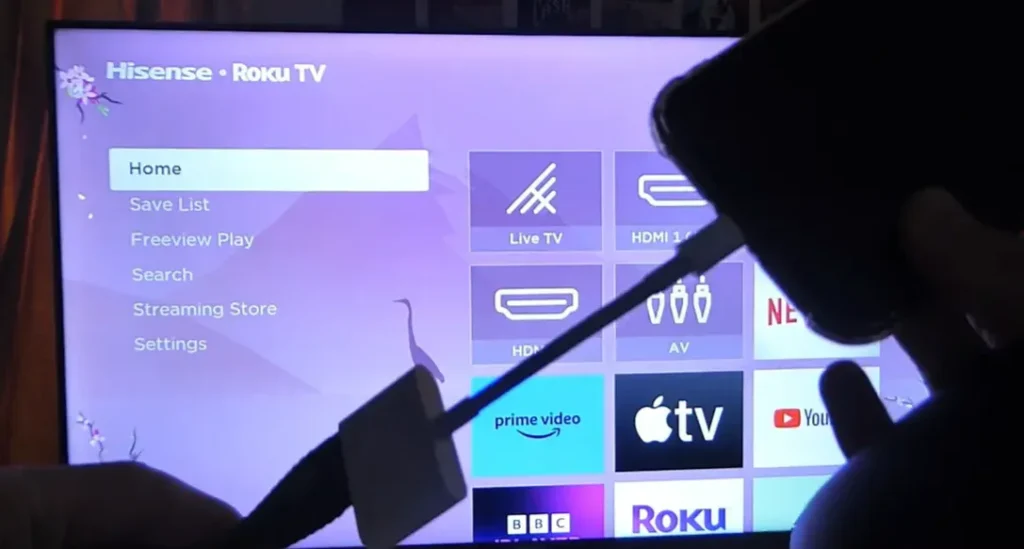
If you want a stable connection with no delay, using an HDMI cable and adapter is the most reliable method. This option works on almost any TV and delivers instant screen mirroring without relying on Wi-Fi.
Depending on your iPhone model, you’ll need either a Lightning-to-HDMI or USB-C-to-HDMI adapter. Plug the adapter into your iPhone, connect an HDMI cable from the adapter to your TV, and switch your TV to the correct HDMI input.
USB-C to HDMI Adapter
These models use the same universal port found on modern MacBooks, iPads, and Android devices.
- iPhone 16 Series: iPhone 16, 16 Plus, 16 Pro, 16 Pro Max
- iPhone 15 Series: iPhone 15, 15 Pro, 15 Pro Max
Lightning to HDMI Adapter
These models use Apple’s proprietary 8-pin connector.
- iPhone 14 Series: iPhone 14, 14 Plus, 14 Pro, 14 Pro Max
- iPhone 13 Series: iPhone 13, 13 mini, 13 Pro, 13 Pro Max
- iPhone 12 Series: iPhone 12, 12 mini, 12 Pro, 12 Pro Max
- iPhone 11 Series: iPhone 11, 11 Pro, 11 Pro Max
- iPhone X / XS / XR Series: All models
- iPhone 8, 7, 6, 5 Series: All models
- iPhone SE: All generations (1st, 2nd, and 3rd gen)
What you’ll need:
- A compatible HDMI adapter (Apple Digital AV Adapter is recommended).
- An HDMI cable (up to 25 feet works well).
- An available HDMI port on your TV.
- A power source for the adapter.
- Your TV remote to select the input.
Your iPhone screen should appear instantly. If it doesn’t, reconnect the cable securely, confirm the adapter is compatible, or try a different HDMI port.
Screen Mirroring With Smart TV Apps and Built-In Features
Many modern smart TVs include built-in screen mirroring features that work directly with iPhones. As with other methods, both devices must be connected to the same Wi-Fi network. Open Control Center, tap Screen Mirroring, and select your TV. A pairing code may appear on your TV screen for confirmation.
Wireless mirroring typically introduces a small delay, usually between 100 and 300 milliseconds. If performance drops, restarting your router, reducing Wi-Fi traffic, or moving closer to the TV can help. For smoother playback, turn off Bluetooth and close unused apps running in the background.
Third-Party Streaming Devices for iPhone Screen Mirroring
If your TV doesn’t support AirPlay, external streaming devices can bridge the gap. Devices like Roku, Chromecast, and Amazon Fire TV Stick allow iPhone mirroring over your home Wi-Fi network and are easy to set up.
Basic configuration tips:
- Roku: Enable AirPlay in Settings > Apple AirPlay & HomeKit.
- Chromecast: Install the Google Home app and link your iPhone.
- Fire TV Stick: Enable AirPlay under Display & Sounds.
- Network setup: Connect both devices to the same 5GHz Wi-Fi band.
- Troubleshooting: Restart devices if the connection drops.
Some alternatives, such as the Microsoft Wireless Display Adapter, work in a similar way. Most of these devices support 1080p or 4K mirroring, depending on the model. They’re often used alongside streaming apps or services from like an IPTV Provider to create a unified viewing experience on larger screens.
Troubleshooting Common Screen Mirroring Problems
Screen mirroring issues can still happen, even with the right setup. If your iPhone won’t connect, start by confirming both devices are on the same Wi-Fi network. Restart your iPhone and TV, and temporarily disable Bluetooth to prevent interference.
For audio delay, adjust your TV’s audio sync settings or switch from a 5GHz to a 2.4GHz Wi-Fi band for better stability. Check iOS restrictions by going to Settings > Screen Time > Content & Privacy Restrictions and make sure AirPlay is allowed.
If you see a black screen, update iOS and your TV’s firmware. When playback stutters, close background apps and lower video quality to 720p. If certain apps won’t mirror at all, keep in mind that some streaming services block screen mirroring by design.
Frequently Asked Questions
Yes, you can mirror while using VPN streaming, but you’ll encounter app conflicts with certain services. First, disconnect VPN temporarily, establish mirroring connection, then reconnect VPN. If issues persist, try split-tunneling or disable VPN for local network traffic.
Yes, you’ll experience significant battery drain when screen mirroring. Your iPhone’s processor works harder, causing heat buildup. You’re essentially powering two displays simultaneously. Expect 30-50% faster depletion than normal use. Consider keeping your charger nearby.
No, you’re completely safe regarding warranty implications and terms compliance. Apple’s built-in AirPlay and screen mirroring features won’t void your warranty. They’re official iOS functions designed for regular use. Third-party apps also don’t affect coverage.
You can’t mirror multiple iPhones simultaneously to one TV through standard AirPlay. For multiple presenters, you’ll need to switch between devices manually. Split viewing requires third-party apps or hardware solutions like HDMI switchers for concurrent display.
There’s no built-in time limit, but you’ll face interruptions from battery overheating after 2-3 hours. Monitor your device’s temperature, reduce brightness, and check for network congestion that’ll cause disconnections during extended mirroring sessions.