MobileMall BlogMobileMall BlogMobileMall Blog
  • #Explore
  • Business
  • Technology
    • Gaming
    • Headphones
    • Laptops
    • Mobile Accessories
    • Home Networking
    • PCs
    • Printers
    • Smart Watches
    • Speakers
    • Tablets
    • Wearables
    • Smart Office
  • Security
  • Buying Guides
  • Contribute
Reading: How to Unlock a Disabled iPhone without Passcode – An Authentic Guide
Share
Font ResizerAa
MobileMall BlogMobileMall Blog
Font ResizerAa
  • #Explore
  • Business
  • Technology
  • Security
  • Buying Guides
  • Contribute
  • #Explore
  • Business
  • Technology
    • Gaming
    • Headphones
    • Laptops
    • Mobile Accessories
    • Home Networking
    • PCs
    • Printers
    • Smart Watches
    • Speakers
    • Tablets
    • Wearables
    • Smart Office
  • Security
  • Buying Guides
  • Contribute
2025 © Mobilemall. All Rights Reserved.
Home » Blog » How to Unlock a Disabled iPhone without Passcode – An Authentic Guide
Apple

How to Unlock a Disabled iPhone without Passcode – An Authentic Guide

Carter (Apple Boy)
Last updated: May 13, 2024 1:14 pm
Carter (Apple Boy)
Share
How to Unlock a Disabled iPhone without Passcode
SHARE

Contents

  1. Part 1: Reasons Behind Why the iOS Device Gets Disabled?
  2. Part 2: Dr.Fone – Screen Unlock (iOS) – An Introduction to Unlocking iOS Devices
  3. Part 3: How to Unlock Your Disabled iOS Device with the Help of Dr.Fone – Screen Unlock?
    1. Step 1: Connect your Device
    2. Step 2: Boot Device in Recovery Mode
    3. Step 3: Verify Device’s Information
    4. Step 4: Unlock the Disabled iOS Device
    5. Conclusion
Add MobileMall Blog as a preferred source on Google

Apple devices are well-known for their enhanced security features. Apple generally goes to great lengths to protect its users’ data, which often involves strong passcodes and other security mechanisms. If the user fails to provide the correct passcode multiple times in a row, Apple’s security kicks in and prevents the device from unauthorized use.

While these impressive security features can protect your device in most cases, they can sometimes be the root of all trouble. If you forgot your passcode or a child tried too many unlocking attempts on your phone, your device could be disabled permanently. Want to avoid this issue? Keep reading to learn why this might happen and how to unlock an iPhone without a passcode using Dr Fone – Screen Unlock for iOS.

Part 1: Reasons Behind Why the iOS Device Gets Disabled?

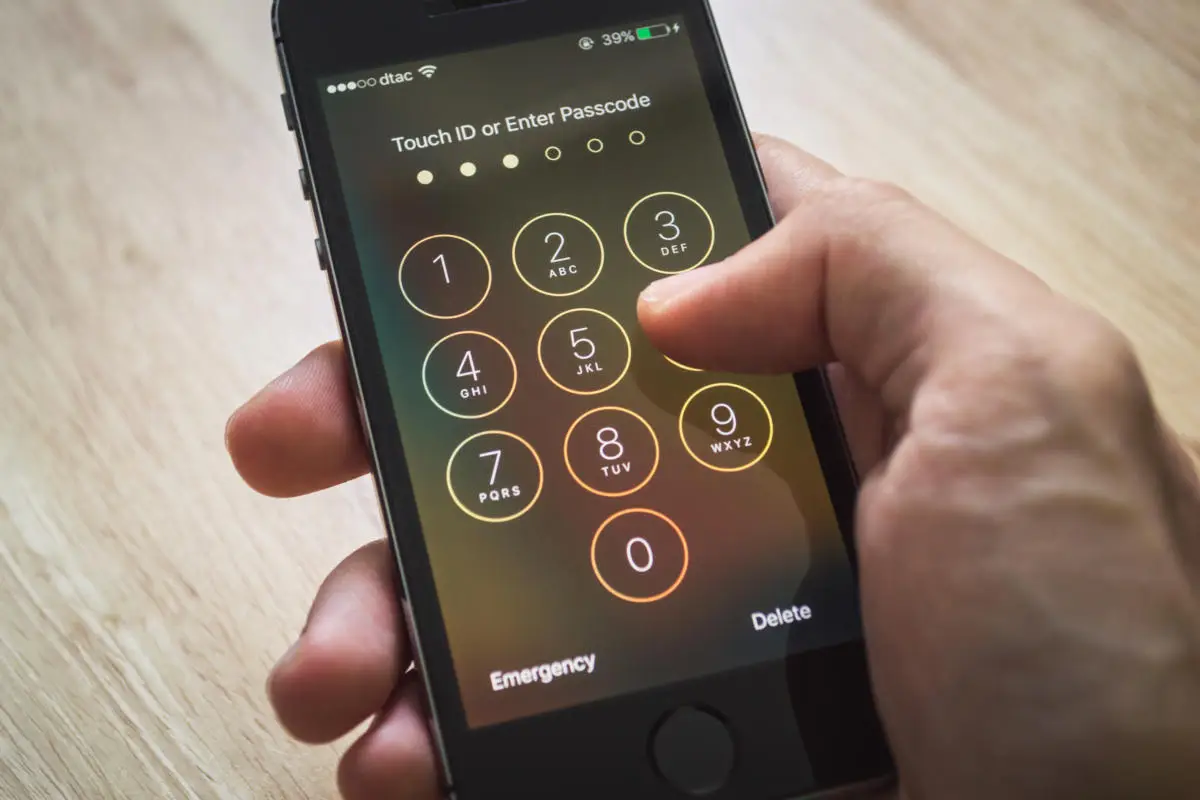
Are you wondering why your iOS device is disabled? Apple devices come with enhanced layers of security that prevent misuse by unauthorized personnel. You can set screen locks such as Face ID, passwords, Touch ID, etc. If your iOS device detects an incorrect password entry, it will be disabled.

The primary reason for this is too many failed attempts at unlocking the phone’s passcode. If you enter the wrong password five times in a row, your iOS device will be turned off for 1 minute. After this, each wrong attempt increases the waiting time. After entering the wrong password ten times a row, your device will be turned off indefinitely. There are several reasons why someone might apply the wrong password multiple times, such as

  1. Unintentional Password Entries

In most cases, users forget their device’s passcodes and make too many attempts in a frenzy. This often leads to the iOS device being disabled for a particular time or permanently. Other unintentional reasons include a child playing with your lock screen or placing it in your pocket or bag where accidental touches can mess with the device’s passcode.

  1. Intentional Password Entries

Sometimes, someone might deliberately try to gain access to your device. If an unauthorized person tries to gain access to your device without knowing the password, it can be disabled. In cases where your iOS device is compromised, this disabled feature comes in handy to protect your confidential data.

Part 2: Dr.Fone – Screen Unlock (iOS) – An Introduction to Unlocking iOS Devices

Are you looking for an authentic way to unlock your disabled iOS device? Dr Fone – Screen Unlock (iOS) has got you covered. Dr Fone is an all-in-one mobile solution that encompasses all your phone troubles. Dr.Fone contains a broad spectrum of valuable tools required to keep your device at an optimal level. Owing to its intuitive interface and rich toolset, Dr Fone is one of the best software solutions for maintaining your device. Dr Fone can do everything from data recovery to fixing system crashes.
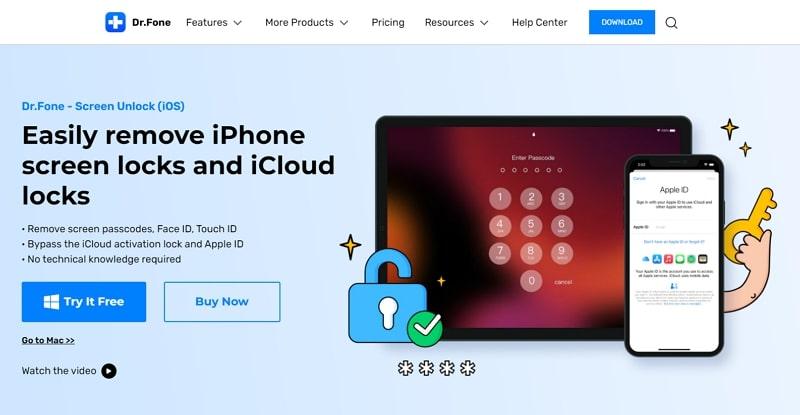
Part 3: How to Unlock Your Disabled iOS Device with the Help of Dr.Fone – Screen Unlock?

You are wondering how to use Dr Fone to unlock your disabled iOS device? This tool can help you unlock disabled devices with a few simple clicks. The process also does not require special permissions or contemporary knowledge regarding your device. Follow the step-by-step guide mentioned below to unlock your disabled iOS device using Dr Fone – Screen Unlock:

Step 1: Connect your Device

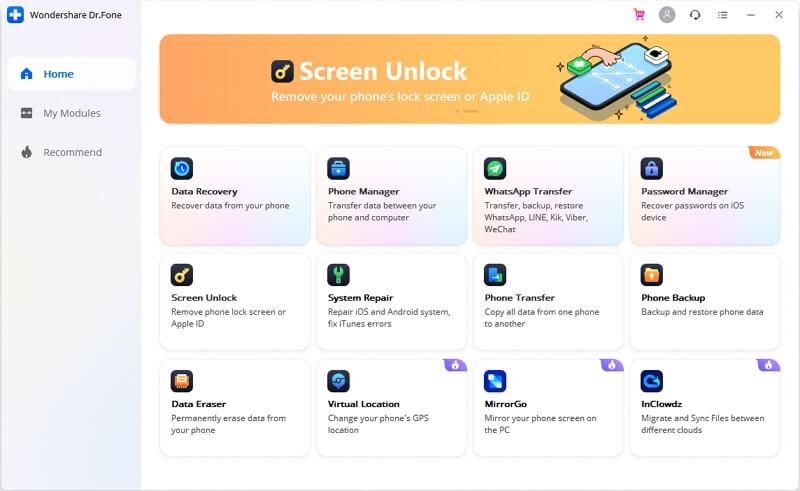
After installing and launching Dr.Fone on your computer, proceed to the program’s home page. From the list of tools available on the screen, choose “Screen Unlock.” Now, use a tethering cable to attach your iOS device to the computer. Afterwards, choose “Unlock iOS Screen” from the program’s interface.
Step 2: Boot Device in Recovery Mode

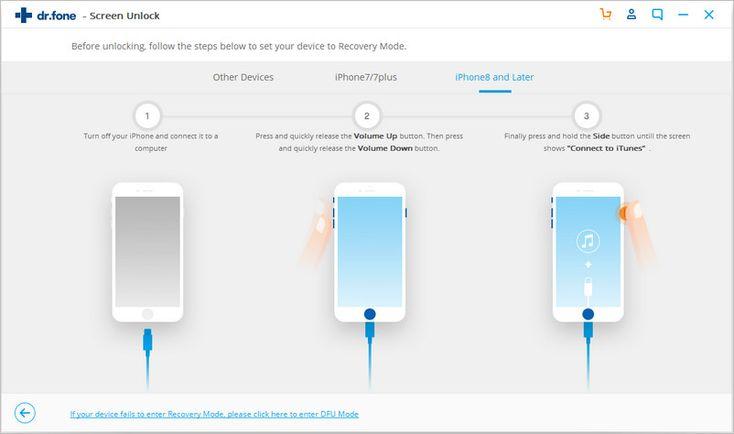
You now need to boot your iOS device in DFU or Recovery Mode. The steps to boot your device in Recovery Mode will be visible on the screen. You can follow them depending on your device’s model to activate the Recovery Mode. If you fail to do so, you can click on the link present at the bottom of the screen to learn how to enter DFU Mode on your iOS device.
Step 3: Verify Device’s Information

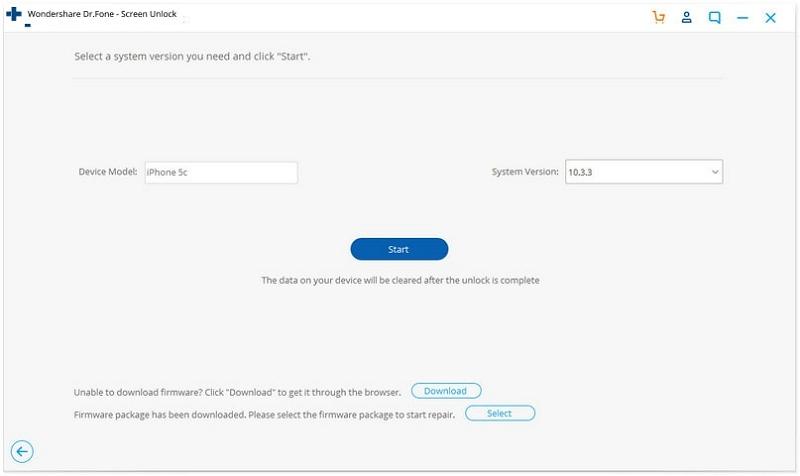
To proceed with the unlocking process, you must download your device’s firmware. For this, confirm the information regarding your iOS device, including the model and system version. You can also manually choose the correct system version from the dropdown list. Once you have verified all the necessary details, tap the “Start” button to download the firmware.
Graphical user interface, text, application

Description automatically generated

Step 4: Unlock the Disabled iOS Device

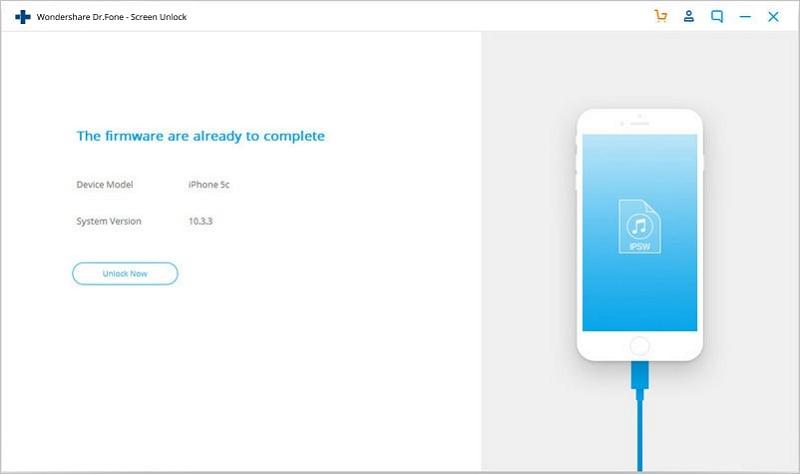
Once the download process has concluded, click the “Unlock Now” button. Dr Fone will automatically begin unlocking your iPhone or iPad device. After a short wait, your iOS device will be unlocked, and you can access it without a passcode.
Graphical user interface, application

Description automatically generated

Conclusion

Apple’s security features in its devices are helpful in protecting them against unauthorized access. If an unforeseen circumstance results in your iOS device being disabled, Dr Fone is the best remedy. Using the Screen Unlock feature of Dr.Fone, you can easily unlock your disabled iOS device.


iOS 27 Beta 4 Code Is Talking About an iPhone With Two Batteries, and That Means the iPhone Ultra
MagicOS 9.0 Now Available for Public Beta Testing, Courtesy of Honor
iPhone 8 and later are receiving iOS 16 Update
Apple’s iPhone 17 Pro Lineup Expected to Boast Advanced Camera and Memory Upgrades.
Samsung’s Privacy Screen Tech Could End Up in MacBooks by 2029

Sign Up For Daily Newsletter

Be keep up! Get the latest breaking news delivered straight to your inbox.
[mc4wp_form]
By signing up, you agree to our Terms of Use and acknowledge the data practices in our Privacy Policy. You may unsubscribe at any time.
Share This Article
Facebook Copy Link Print
Share
ByCarter (Apple Boy)
Follow:
I am the Owner of HexaCore. I just love using Apple devices. Yes iPhone, a MacBook, Airbuds and an Apple Watch. I love their sleek designs and unqiue ideas. Writing about Apple products and updates is my hobby now.
Previous Article Musk Planning To Allow Blue Tick For $20 & Bring Back Vine Elon Musk Planning To Allow Blue Tick For $20 & Bring Back Vine – Twitter
Next Article Transfer Data from Android to iPhone How to Transfer Data from Android to iPhone

Latest News

Indian flag built from smartphones with the right quarter missing, showing India’s 26% fall in phone shipments
India’s Phone Sales Fell 26% This Quarter, The Worst Since 2016
News Smartphone
Huawei Mate X8
Huawei Mate X8 Leaks With Bigger Screens And A Privacy Display
Phone Leak
Apple HomeView
Apple Is Already Building A Bigger HomeView With A Robot Arm
Apple Smart Home
Galaxy F70 Launch On 20 Oct
Samsung Galaxy F70 Launches In India
Phone Launch Samsung
iPhone Duo Pre-Orders
iPhone Duo Sold Out In Hours, New Orders Now Ship January 22
Apple Phone Launch
Vivo V80 launched Global
Vivo V80 Is Now Coming To More Countries
Phone Launch
Soil cutaways comparing a bursting head pulling new HDPE pipe with a resin liner cured inside old clay pipe
Pipe Bursting Sewer Line Services vs CIPP Lining Sewer Line Services: Which Method Lasts Longer?
Comparison
Samsung Galaxy F70 Launch on 18th Oct
Samsung Galaxy F70 5G Launches In India On October 18
Phone Launch Samsung

You Might also Like

Apple's latest iPad mini 2024
AppleData ScienceNewsPhone Launch

Apple’s latest iPad mini 2024: Built for intelligence, designed for you.

Carter (Apple Boy)
Carter (Apple Boy)
5 Min Read
iPhone 18 Pro Max battery
AppleNews

Apple Locks The iPhone 18 Pro Max Battery Until You Switch It On

Carter (Apple Boy)
Carter (Apple Boy)
5 Min Read
Apple's iOS 17
ApplePhone Launch

Apple’s iOS 17 Version Launching On June 5 2023

Carter (Apple Boy)
Carter (Apple Boy)
1 Min Read

About us

Mobilemall.co blog is an informative and engaging platform that offers readers the latest news and insights on mobile phones and accessories. The blog covers a wide range of topics, including product reviews, industry trends, and tips on how to get the most out of your mobile device.

Contact Us:
[email protected]

Categories Link

  • Business
  • Mobile
  • Technology
  • Gaming
  • Phone Review
  • Android

Must Read

iPhone Duo Pre-Orders
iPhone Duo Pre-Orders Open Today
Apple Phone Launch
How Scheduling Roto Rooter Services Mitigates Home Plumbing Emergencies
Tips & Tricks

Quick Links

  • Privacy Policy
  • Tech Write For Us
  • Contact Us
  • Facebook
  • Instagram
  • YouTube
  • LinkedIn
2026 © Mobilemall. All Rights Reserved.
Go to mobile version
Welcome Back!

Sign in to your account

Username or Email Address
Password

Lost your password?

Not a member? Sign Up