
Sometimes, your iPhone can fail to recognize your Face ID or Touch ID due to a software glitch or hardware malfunction. It’s also possible you can’t remember your passcode or have been locked out of the device after trying multiple wrong passcodes. If you find yourself in any of the scenarios, it can prove impossible to unlock your iOS device.
I know how annoying it can be when you can’t unlock your iPhone because you forgot the passcode or Touch ID/Face ID isn’t working. In this post, I will explain 3 very easy methods to get into your iPhone without needing the passcode, even if the fingerprint or face unlock isn’t working.
Way 1: Unlock iPhone without Passcode via FoneGeek iPhone Passcode Unlocker
FoneGeek iPhone Passcode Unlocker is an intelligent software program that unlocks your iPhone without a passcode, Face id or Touch ID. The software is also designed to remove Apple ID and iCloud account without password. FoneGeek iPhone Passcode Unlocker is user-friendly and everyone can use it easily. Here are some key features of the software program:
- It is easy to use and unlocks iPhone/iPad in just 3 steps.
- It can remove all types of iOS screen locks, including 4-digit/6-digit passcode, Face ID, Touch ID.
- It can remove Apple ID without a passcode or bypass iCloud activation lock.
- It is compatible with all iOS versions and Apple devices, even the latest iOS 16 and iPhone 14.
Here is how to use the FoneGeek iPhone Passcode Unlocker to unlock your iPhone:
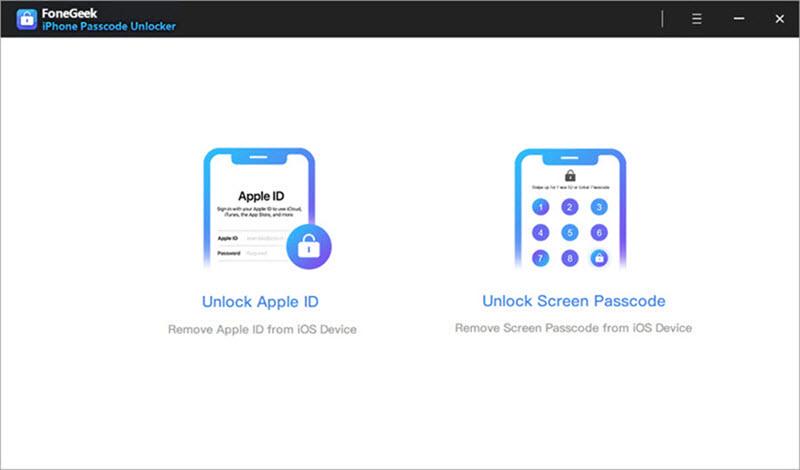
- Step 1: Download and install the software program on your Windows PC or Mac from the FoneGeek official website. Once installed, launch the program and choose “Unlock Screen Passcode”.
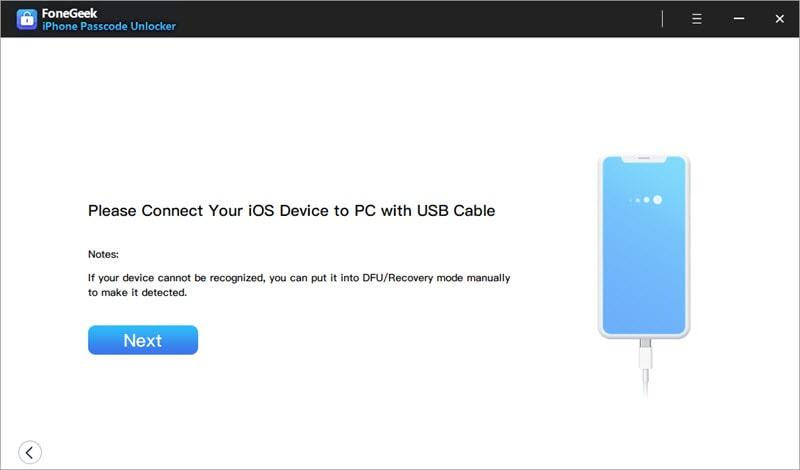
- Step 2: Link your locked iPhone or iPad to the PC using a USB cable/lightning cord and click “Next”.
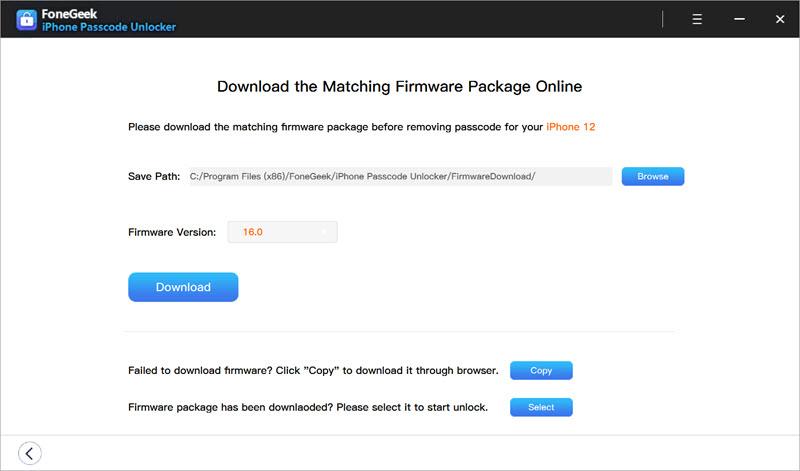
- Step 3: Click “Download” to get the firmware package. Ensure the firmware you download is compatible with your device. You’ll need about enough free space on your PC to download the firmware.
- Step 4: Once the firmware download is complete, click on the “Start Unlock” button to remove your iPhone screen passcode.
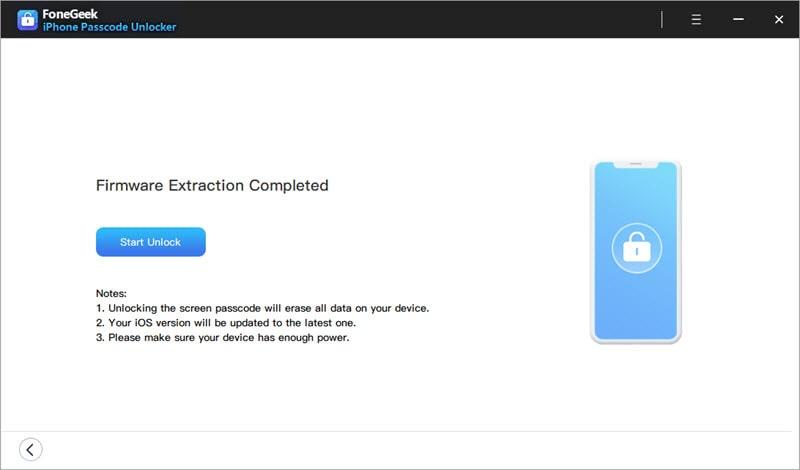
The software will notify you once your iPhone passcode has been removed. Please note that the unlocking process will erase all the data on the device. You’d better back up your data in advance.
Way 2: Unlock iPhone without Passcode via iTunes or Finder
You can also unlock a locked iPhone with iTunes or macOS finder. There are two options to go about this. Before you go on, you should know that this method will erase your iPhone date. So, it’s advised to back up your data to the cloud or an external storage device.
Option 1: Synced Before – Restore iPhone
This option is suited for iPhones that have been synced to macOS Finder or iTunes before, and have trusted the computer. Here is a detailed guide:
- Step 1: Link your iPhone to the PC using a USB cord/lightning cable. Then launch iTunes or the Finder app on macOS.
- Step 2: Wait for your iPhone to be detected by the program and select “Restore iPhone.”
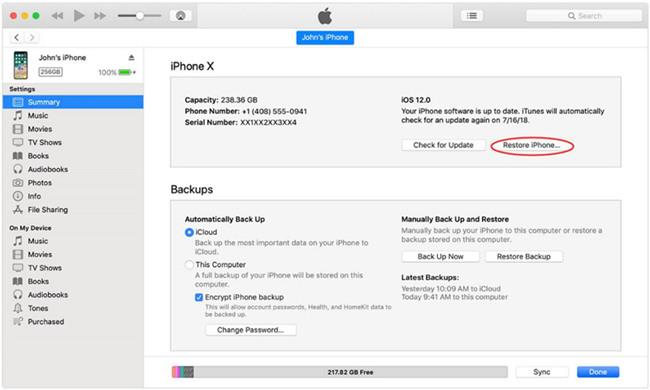
Leave your iPhone for a while to allow the program to unlock it. Ensure the iPhone is connected throughout this process or the process will be halted.
Option 2: Haven’t Synced Before: Recovery Mode
This option is suited for iPhones that have not been synced to macOS finder or iTunes before. You can put the device into Recovery mode to restore it and remove the screen passcode. Here is a detailed guide:
- Step 1: Link your iPhone to the PC using a USB cord/Lightning cable.
- Step 2: Put the iPhone in Recovery Mode.
- For iPhone 6 series and older models: Long press the “Home” and “Side” buttons together until the Recovery mode screen is displayed on the phone.
- For iPhone 7 series: Long press the “Volume Down” button and “Power” button until the Recovery mode screen is displayed on the phone.
- For iPhone 8 series and newer models: Quickly press and release the “Volume Up” button. Then quickly press and release the “Volume Down” button. Then long press the “Power” or “Side” button until the Recovery mode screen is displayed on the phone.
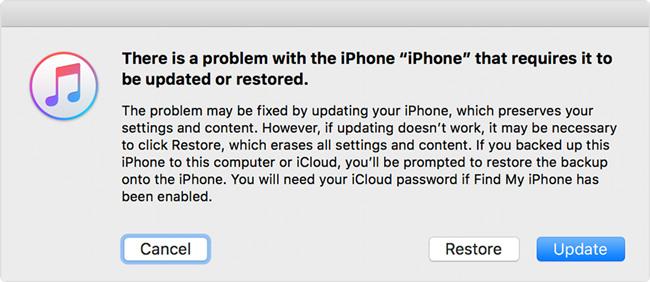
- Step 3: iTunes or Finder will provide you the options to “Restore” or “Update” when your device is in Recovery mode. Click on “Restore” in the pop-up and wait for the process to complete.
Way 3: Unlock iPhone without Passcode via Find My
You can also use Apple’s “Find My” service to unlock your iPhone. The service is designed to find your iDevice if lost but it can also unlock your iPhone by erasing it. When the iPhone is erased, the screen lock is also erased allowing you to access the phone’s features without a passcode, Face ID, or Touch ID.
Since this method will erase your iPhone data, it’s advised to back up your vital info and files on the phone if you can. You can back up on iCloud or use an external storage device.
Pro Tip: You should know that this method only works if you have previously set up Apple’s “Find My” service on your device. If you haven’t, use another method on the list.
If you have previously set up the “Find My” service, here is a detailed guide on how to use it to unlock your iPhone:
- Step 1: On your PC or another smartphone, open any web browser and go to iCloud.com.
- Step 2: Log in to iCloud using your Apple ID and passcode. Note: The Apple ID passcode is not your iPhone passcode, It is the passcode for your iCloud account.
- Step 3: Click the “Find iPhone” icon and select “All Devices.” This shows you all the iDevices linked to your Apple account. Find your iPhone in the list and click on it.
- Step 4: Select the “Erase iPhone” option and click on “Erase.”
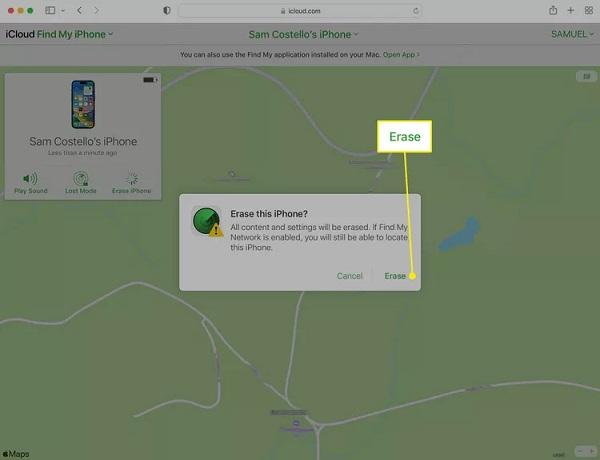
Once your iPhone has been erased, you can configure it like a new device or restore a backup. Ensure to set a new passcode that you’ll remember after erasing the device.
Conclusion
In conclusion, it can be very frustrating to be locked our of your iOS device especially when you need to use the iPhone. If you ever forget your iPhone passcode or the Face ID or Touch ID isn’t working, you can fix the issue using any of the 3 fixes outlined in this post. If you are looking for the simplest and quickest way to unlock your iPhone, then FoneGeek iPhone Passcode Unlocker will be your best choice.