MobileMall BlogMobileMall BlogMobileMall Blog
  • #Explore
  • Business
  • Technology
    • Gaming
    • Headphones
    • Laptops
    • Mobile Accessories
    • Home Networking
    • PCs
    • Printers
    • Smart Watches
    • Speakers
    • Streaming Devices
    • Tablets
    • Wearables
    • Smart Office
  • Security
  • Buying Guides
  • Contribute
Reading: Settings and Routines Worth Changing on Your Android
Share
Font ResizerAa
MobileMall BlogMobileMall Blog
Font ResizerAa
  • #Explore
  • Business
  • Technology
  • Security
  • Buying Guides
  • Contribute
  • #Explore
  • Business
  • Technology
    • Gaming
    • Headphones
    • Laptops
    • Mobile Accessories
    • Home Networking
    • PCs
    • Printers
    • Smart Watches
    • Speakers
    • Streaming Devices
    • Tablets
    • Wearables
    • Smart Office
  • Security
  • Buying Guides
  • Contribute
2025 © Mobilemall. All Rights Reserved.
Home » Blog » Settings and Routines Worth Changing on Your Android
AndroidTech Lifestyle

Settings and Routines Worth Changing on Your Android

Liron Segev (Tech Geek)
Last updated: May 11, 2023 6:43 am
Liron Segev (Tech Geek)
Share
SHARE

Contents

  1. Preserve Your Battery Life
    1. Keep Screen Brightness Under 50%
    2. Enable Dark Mode
    3. Use Battery Optimization and Adaptive Battery Features
  2. Make Using the Phone More Convenient
    1. Declutter Your Screen
    2. Do Not Disturb is There for a Reason
    3. Benefit from Digital Wellbeing
  3. Improve Your Security
    1. Enable Find My Phone
    2. Use a VPN
    3. Lock Your Phone

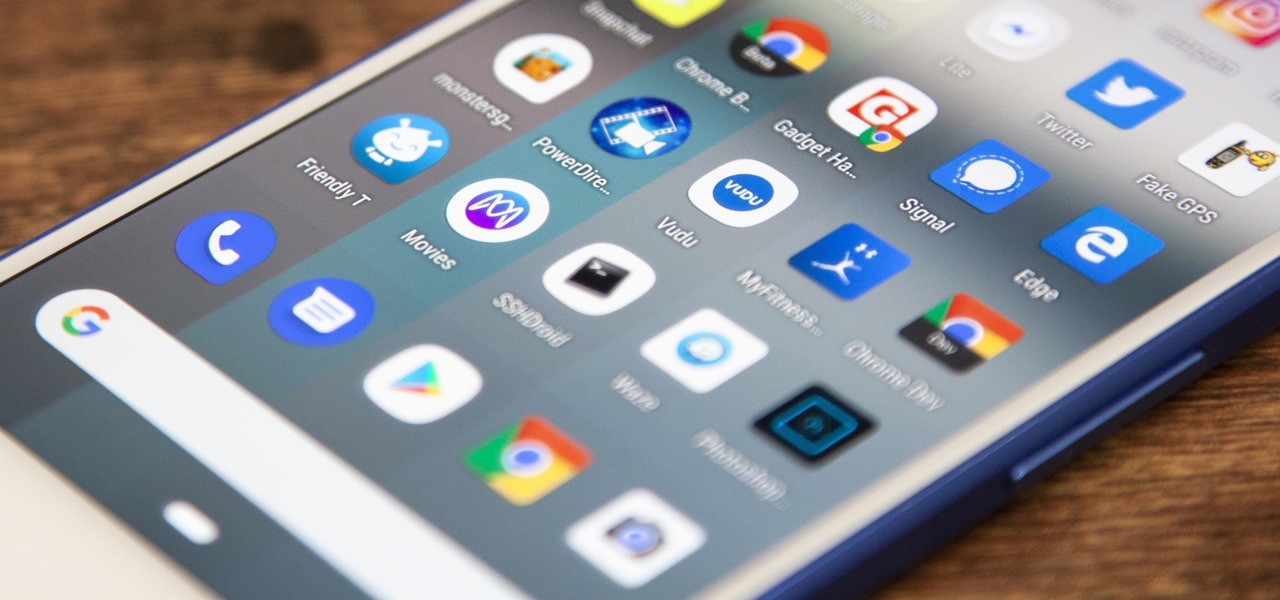
There is much more to your Android smartphone than it meets the eye. Over the years, developers have made Android this sophisticated OS that works great with the latest technologies built into your phone. More importantly, there are hundreds of settings and fine-tunes you can do to improve your experience and security as a user.

Do you want to play with those settings and personalize your phone? Then you’ve stumbled upon just the right guide for you. Here are nine settings you should change on your Android. As a bonus, some additional measures will be presented as well. 

Preserve Your Battery Life

Not all Android phones pack a 5,000mAh battery. Saving a few percent of battery life here and there amounts to an hour or two of screen time. Here is how you can preserve your battery life on an Android phone.

Keep Screen Brightness Under 50%

Your phone screen is one thing that drains your battery the most. The brighter it is, the more battery it will use. However, most phones come with auto screen brightness on. 

To turn it off, you need to pull down the menu from the top of your screen, disable auto screen brightness, and adjust the slider just below 50%.

Enable Dark Mode

Enabling Dark Mode is a great way to reduce battery usage. Additionally, it can also minimize the strain on your eyes you experience while spending a lot of time looking at your screen. It turns out that it takes considerably less power to display dark instead of the white background.

Suppose you run Android 10 or higher, head straight to settings, and look for Night Mode, Dark Theme, or Dark Mode. If you don’t, then you will have to enter each app and enable the dark mode if the app features it.

Use Battery Optimization and Adaptive Battery Features

These features are available on smartphones with Android version 9 and above. They make your smartphone even smarter. These features track your phone usage and optimize how much battery the apps use.

The best way to find these features and enable them is to open your settings and type “battery” in the search box.

Make Using the Phone More Convenient

Making the following fine-tunes will help you personalize your phone and make it more convenient for everyday use.

Declutter Your Screen

Are you annoyed with having to remove or place an icon of an app that you’ve just installed? There is a way to prevent your phone home screen from being cluttered. 

Before you head to Google Play Store, disable your phone from automatically making an icon on the home screen. Long-press the empty area on your screen, then hit Settings and disable “Add icon to Home screen.”

Do Not Disturb is There for a Reason

Are you getting buzzed in the middle of the night or too early in the morning, only to find out that it’s a meaningless Facebook notification or a generic email? This isn’t very pleasant. You can use DND mode to prevent it from happening ever again. 

To quickly access the feature hit Settings and type Do Not Disturb in the search bar. You can even set when you want it to be enabled and set exceptions for important phone calls.

Benefit from Digital Wellbeing

The Digital Wellbeing Suite is available on phones with Android 9 or later. It is designed to keep you from overusing your phone. If you find yourself spending too much time on your phone, install Digital Wellbeing and set the limit for the apps causing you to spend hours on your phone.

Improve Your Security

Cybersecurity, losing your phone, or getting it stolen are all possible risks. The following settings will help you protect it. 

Enable Find My Phone

Google offers an excellent “Find my phone” tool to help you find your lost phone. Access Security settings on your phone and enable the “Find My Phone” feature.

You will be able to log into your Google account via a web browser to see your phone’s location, ring it, or even completely erase it. 

Use a VPN

Using public Wi-Fi networks exposes you to a variety of threats. Sneaky cybercriminals can hack into your phone via unsecured Wi-Fi and steal your private data, including payment info. 

You can protect yourself from such a threat easily. Download an Android VPN (Virtual Private Network) application and ensure that all your online communications travel safely. The purpose of a VPN is to encrypt your traffic and to conceal your real IP address. This combination works wonders for your privacy and will reassure that public Wi-Fi networks no longer pose a threat to your data. 

Lock Your Phone

You never want to leave your phone unlocked. There are plenty of options to lock your phone – fingerprint, face unlock, pattern, PIN, and password. Choose whichever you find the most convenient. 

To minimize the chances of someone snatching it from you while it is still unlocked, keep the Auto Screen Sleep time to a minimum. Hit Settings, then tap on Display and set Screen Sleep time.

There you have it – nine improvements you should make on your Android. The chances are that you are already using some of them. Follow through on the others to personalize your phone and keep it safe and secure.

Illuminate Your Life: Exploring the Benefits of Smart Lighting
Balancing Your Smartphone and Computer for Work and Play Effectively
OxygenOS 13 Brings Android 13 with a Water-Inspired Look
Business Productivity Tools Every Tech Entrepreneur Should Consider in 2026
Google is expanding the power button menu in Android 11

Sign Up For Daily Newsletter

Be keep up! Get the latest breaking news delivered straight to your inbox.
[mc4wp_form]
By signing up, you agree to our Terms of Use and acknowledge the data practices in our Privacy Policy. You may unsubscribe at any time.
Share This Article
Facebook Copy Link Print
Share
ByLiron Segev (Tech Geek)
Follow:
Liron Segev, also known as TheTechieGuy, is a tech expert who believes that technology should be simple and accessible to everyone. With a knack for breaking down complex topics into easy-to-understand terms, Liron has become a trusted source of information for tech enthusiasts and novices alike. Allowing readers to learn about topics like security issues (such as hacking, passwords, and scams), connectivity (including wifi, routers, mesh networks), and helpful tips and tricks for optimizing technology and achieving faster internet speeds.
Previous Article Samsung Galaxy A52 4G and 5G’s full specs, design and price
Next Article Mobile Gaming – Tips, Tricks, and Strategies

Latest News

samsung-galaxy-z-fold8-ultra
Samsung Z Fold8 Ultra Reportedly Jumps to 5,000mAh Battery — No Extra Weight
News Samsung
alphabet-80-billion-raise
Alphabet Raised $80 Billion in One Move. Berkshire Was Part of It.
Google News
crypto-casinos
Crypto Casinos Pulled In $81 Billion Last Year, and That’s Five Times What They Made in 2022
Business Entertainment
How AI Room Redesign Apps Turn a Phone Photo Into a Photorealistic Makeover
How AI Room Redesign Apps Turn a Phone Photo Into a Photorealistic Makeover in Under 10 Seconds
Artificial Intelligence
The Truth About Megapixels
The Truth About Megapixels: Why a Higher Number Does Not Mean a Better Camera
Camera & Photo Innovation
WHEN ADS STOP WORKING
Brand Recall From Digital Ad Screens Stops Climbing Around the 8th Exposure — Here’s What the Habituation Data Actually Shows
Digital Marketing
Your Phone's Touch Latency Might Be Costing You Bets You Thought You Placed in Time
Your Phone’s Touch Latency Might Be Costing You Bets You Thought You Placed in Time
Phone Review
Comparing AI Strategies in Betting Platforms
Esports Betting Platforms Now Run on AI — From Odds to Support Tickets to Fraud Detection
Data Science

You Might also Like

Samsung Exynos 1480
AndroidNewsSamsung

Samsung announces the Exynos 1480, its latest flagship chipset with cutting-edge technology.

Mobilemall Staff
Mobilemall Staff
2 Min Read
FunTouch OS 15
AndroidArtificial IntelligenceNews

Exploring AI Features in FunTouch OS 15

Mobilemall Staff
Mobilemall Staff
4 Min Read
doc to pdf
Tech Lifestyle

Best 3 ways to convert DOC to PDF

Jayshree Rajani Malhotra (Tech Lifestyle)
6 Min Read

About us

Mobilemall.co blog is an informative and engaging platform that offers readers the latest news and insights on mobile phones and accessories. The blog covers a wide range of topics, including product reviews, industry trends, and tips on how to get the most out of your mobile device.

Contact Us:
[email protected]

Categories Link

  • Business
  • Mobile
  • Technology
  • Gaming
  • Phone Review
  • Android

Must Read

s27-pro-camera
Samsung Galaxy S27 Pro camera leak
Phone Leak Samsung
Why Your TikTok Videos Are Not Getting Views (And How to Fix It)
Social Media

Quick Links

  • Privacy Policy
  • Tech Write For Us
  • Contact Us
  • Facebook
  • Instagram
  • YouTube
  • LinkedIn
2026 © Mobilemall. All Rights Reserved.
Go to mobile version
Welcome Back!

Sign in to your account

Username or Email Address
Password

Lost your password?

Not a member? Sign Up