Instant TroubleShoot: If Phone Says “No SIM” or “No Service, Try the Aeroplane/Airplane mode.
Few things are more frustrating than looking at your phone only to see the dreaded “No SIM” or “No Service” message. It instantly cuts you off from calls, texts, and data—basically everything a smartphone is meant to do. For many users, this issue can be temporary and solved with simple at-home fixes, but in other cases, it may point to deeper hardware or software problems.
Drawing on real repair experience, this guide covers why it happens, what you can do to troubleshoot, and when professional diagnostics become the only reliable option.
Section 1: Understanding the Problem
What “No SIM” Means
When your phone says “No SIM,” it’s failing to recognize the SIM card inserted. This could be due to:
- Improper SIM insertion
- Dust or corrosion on the SIM tray
- A faulty SIM reader in the phone
What “No Service” Means
On the other hand, “No Service” usually indicates your SIM is detected, but your phone can’t connect to a cellular network. Common causes include:
- Carrier outages in your area
- Incorrect network settings
- Software glitches after an update
- Physical damage to antennas
Both problems can overlap—sometimes your phone jumps between “No SIM” and “No Service.”
Section 2: Common Causes Behind SIM/Service Issues
- Loose or Damaged SIM Card – Even a tiny misalignment can block network access.
- Software Bugs – Updates, downgrades, or custom ROMs often cause network recognition problems.
- Water or Heat Damage – Exposure to liquid or overheating can corrode SIM trays and internal chips.
- Carrier-Related Issues – Network outages or deactivated SIMs may show as “No Service.”
- Faulty Hardware – Broken SIM readers, antennas, or logic board issues.
Section 3: Quick Fixes That Work
1. Restart Your Phone
The classic restart often resets network functions. Hold the power button, restart, and check if the error clears.
2. Reinsert the SIM Card
- Turn off the device.
- Use a SIM eject tool (or paperclip).
- Remove and clean the SIM gently with a microfiber cloth.
- Reinsert carefully and power back on.
3. Toggle Airplane Mode
Enable airplane mode for 30 seconds, then turn it off. This forces your phone to reconnect to available networks.
4. Update Carrier Settings
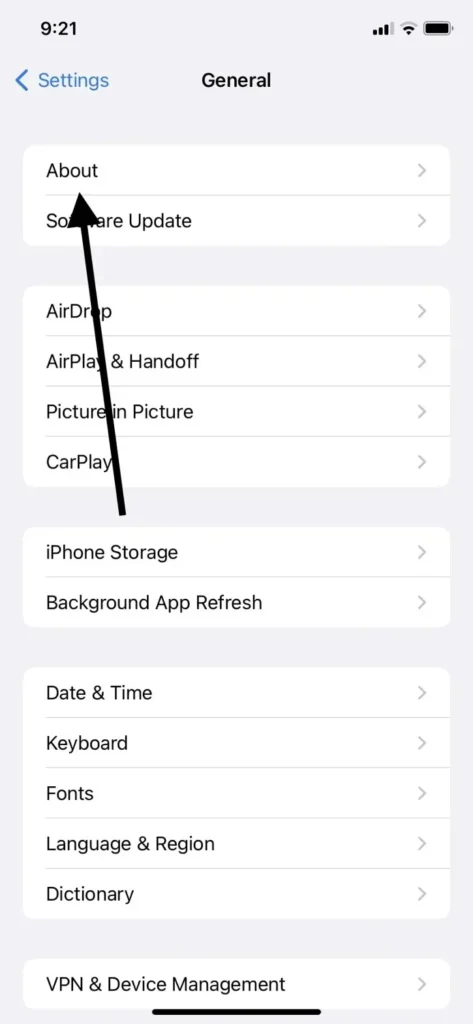
Go to Settings > General > About (on iPhone) or Settings > About Phone > Carrier (on Android). Install updates if prompted.
5. Reset Network Settings
Resetting clears glitches in Wi-Fi, Bluetooth, and mobile data configuration.
⚠️ Note: This will erase saved Wi-Fi passwords.
6. Try the SIM in Another Phone
This determines if the issue is with your SIM card or your device.
7. Inspect for Water Damage
If your phone was recently exposed to liquid, a professional water damage inspection or water damage repair services may be required.
8. Check for iOS/Android Updates
Software bugs often cause SIM errors. Update to the latest version to patch known issues.
9. Manually Select Carrier
Go to settings > mobile networks > manually select your carrier if it’s not auto-detected.
10. Full Diagnostics
If none of these work, the issue could be deep hardware failure. (Natural anchor example: Many users book a phone diagnostics test with our technicians to identify faulty SIM readers or antenna problems.)
Section 4: When DIY Fixes Aren’t Enough
Sometimes, the “No SIM” or “No Service” error goes beyond quick fixes. You might notice:
- SIM works fine in another phone but not yours
- Phone heats up abnormally after inserting SIM
- Error reappears right after every update
In such cases, a repair shop is your safest option. Depending on what we find, fixes may include:
- SIM reader replacement
- Logic board micro-soldering
Section 5: Practical Recommendations
- Always keep your SIM tray clean and dry.
- Avoid using cheap SIM adapters—they bend trays easily.
- Back up your device before repairs.
- If your phone has been dropped, get afull device inspection to rule out hidden damage.
Conclusion
The “No SIM” or “No Service” error doesn’t always mean your phone is permanently damaged. Many times, a restart, reinsert, or network reset solves the issue. But when these don’t work, it’s usually a sign of deeper hardware trouble best left to experts.
FAQs
Yes. Even tiny scratches can break connectivity. Testing the SIM in another phone helps confirm.
Updates sometimes corrupt network settings. Resetting network settings usually helps.
Yes, but success depends on how quickly it’s treated. Immediate drying and professional cleaning give the best chance.
Check service with another SIM or try your SIM in another phone. If others work, it’s likely your device, not the carrier.